Template/Attribute to Publish Tab
The Template/Attribute to Publish tab provides the following Configurator features:
- Template based configuration
- Attribute based configuration
- Index management
The Template/Attribute to Publish tab’s toolbar includes:
Template/Attribute to Publish Toolbar Controls
| Control | Control Name | Control Description |
|---|---|---|
| Save | Saves any changes made to the template/Attribute or indexed configuration. | |
| Refresh | Refreshes the list tree of Templates and Attributes. | |
| Attribute Category Filter | Displays a drop-down list of categories that is comprised of every category the selected template’s list of Attributes has.If no selection is made or if you select No Filter, the "Select All by Filter" and "Deselect All by Filter" buttons will check or uncheck all of the Attributes for the current template.If you select a category from the drop-down list and a select or deselect all request is made, all of the template’s Attributes that have the selected category will be selected or deselected. | |
| Select All by Filter | Checks all of the selected template’s Attributes based on the Attribute Category Filter’s drop-down list of categories. | |
| Deselect All by Filter | Removes the check from all of the selected template’s Attributes based on the Attribute Category Filter’s drop-down list of categories. | |
| Indexed (checkbox) | This is an optional check box seen on each Attribute Details panel. It allows you to toggle the true/false indexed value for an attribute.To learn more about indexing, please Attribute Indexing. |
Configuring Templates to Have the SF_SQLAccess Category
To configure a template to have the SF_SQLAccess category:
Select Configurator from the primary menu.
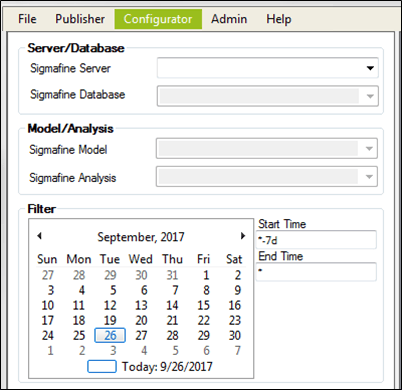
Click on the Sigmafine Server down-arrow and select the server.
Click on the Sigmafine Database down-arrow and select the database.
Click on the Template/Attribute to Publish tab.
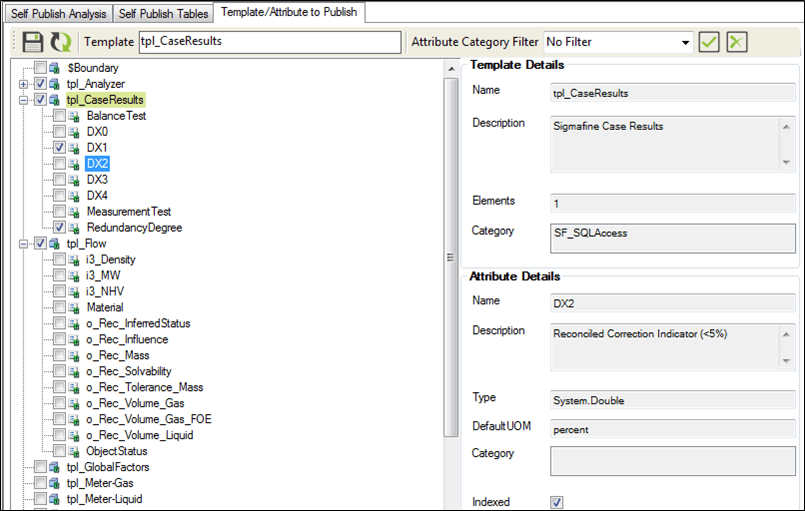
In the list, check all the templates you want to select.
A check indicates that the template is to have the SF_SQLAccess category.
Click the Save icon to save the selections.
Configuring a Template's Attributes
If the user would like to configure a template’s attributes, they may check the desired Attributes from the template’s sub tree. The Attribute Category Filter provides a filter based on Attribute category that makes selecting by Attribute category simple.
In addition, the user will always be able to tell which template and Attribute has been selected by the Template Details and Attribute Details sections depicted on the right hand side of the figure below:
To configure a template's Attributes to have the SF_SQLAccess category:
From the primary menu, select either theConfigurator menu.
Click on the Sigmafine Server down-arrow and select the server.
Click on the Sigmafine Database down-arrow and select the database.
Click on the Template/Attribute to Publish tab.
Expand the tree view of the template containing the Attributes you want.
A check indicates that the template is to have the SF_SQLAccess category.
In the expanded list, check each Attribute for which you want to have the SF_SQLAccess category.
Click the Save icon to save the selections.
Templates that are highlighted in green denote Attribute level configuration. For example, Figure 1145 shows “tpl_CaseResults” highlighted in green and “tpl_Flow” not highlighted. The reason for this difference is that “tpl_CaseResults” has “DX1” and “RedundancyDegree” Attributes checked. None of “tpl_Flow” Attributes are checked, and therefore, “tpl_Flow” does not have Attribute level configuration. The highlighting mechanic allows you to see exactly which templates have been configured at the Attribute level without having to expand each sub-tree to find out. However, any changes saved for Indexed values do not signify Attribute level configuration and therefore, do not cause the associated template to be highlighted.
Note: Templates are highlighted only after the configuration has been saved.