Remove a User
As the Administrator of SFHub, you can remove a registered user at any time. When a user is removed, you are unregistering their user name from SFHub, which in turn prevents them from being able to access any of the applications available through SFHub.
When you remove a user from SFHub, you are deleting their access to all SFHub applications. If you just want to limit the applications they can use on SFHub, do not remove them. Instead, configure their account to allow access to only those SFHub applications they need to use. See Configure User Rights for details on configuring users.
To remove a user:
Log into SFHub as an Administrator.
Click on the SigmafineHub® Admin application block to open the SFHub Admin application.
If you already have the SFHub Admin application open, ignore this step.
Click on the
 User
Settings icon to open the User Settings panel, if not already
open.
User
Settings icon to open the User Settings panel, if not already
open.SFHub Admin - User Settings panel
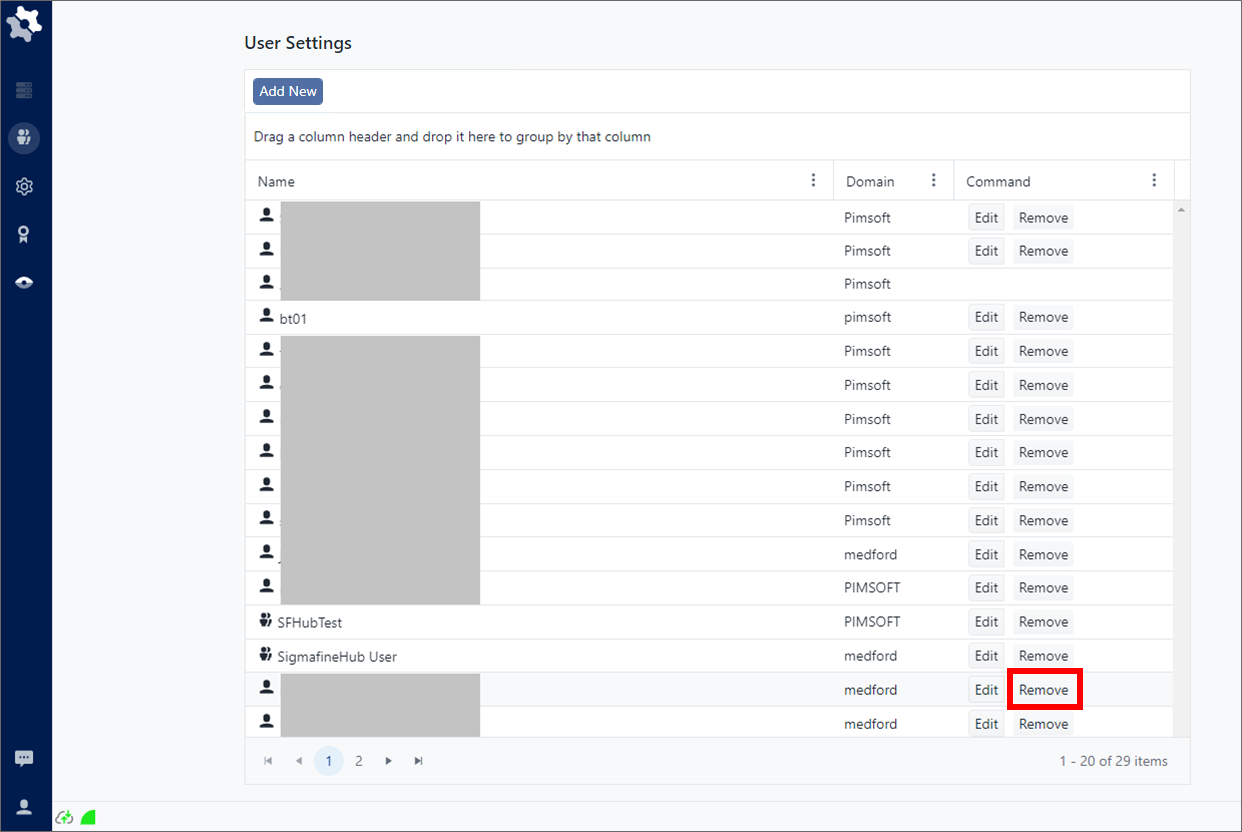
Click on image to enlarge it.
Locate the user or group name you need to remove (unregister) from SFHub.
infoYou can also further narrow the search by using the Filter option available from the vertical ellipsis icon at the right side of a column. See Search By Column Content for details. From the same ellipsis icon, you can also use the Sort features to display the list in ascending or descending order. See Group and Sort Lists for details.
Click the Remove button.
A small panel appears asking if you want to remove the [user or group name].
Click Yes to remove the user.
The user name disappears from the User Settings list.
Repeat steps 4 through 6 for each user you need to remove (unregister) from SFHub.