Using SQL Server Management Studio
SQL Server Management Studio (SSMS) is an environment for accessing, configuring, managing, administering, and developing all components of SQL Server. It combines the features of database management and query analysis. After publishing the data using Sigmafine SQL Access, you can easily access the database you have just created. You can also access the schema, table information, and database security. Most importantly though, you can access the data by querying the database.
To use SQL Server Management Studio:
Open the Microsoft SQL Server Connect to Server window.
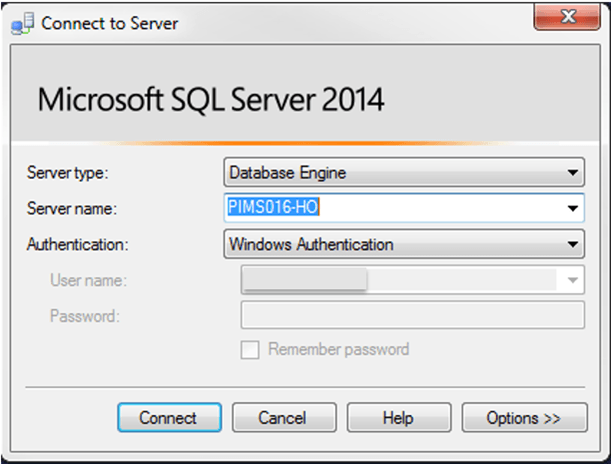
Click on the Server type down-arrow and select the Database Engine type.
Click on the Server name down-arrow and select the name of the server to which you want to connect.
Click on the Authentication down-arrow and select which type of authentication is used to authenticate users on the selected server.
If required, select a User name to connect to the server with and the Password for that user name.
Click the Connect button to connect to the server.
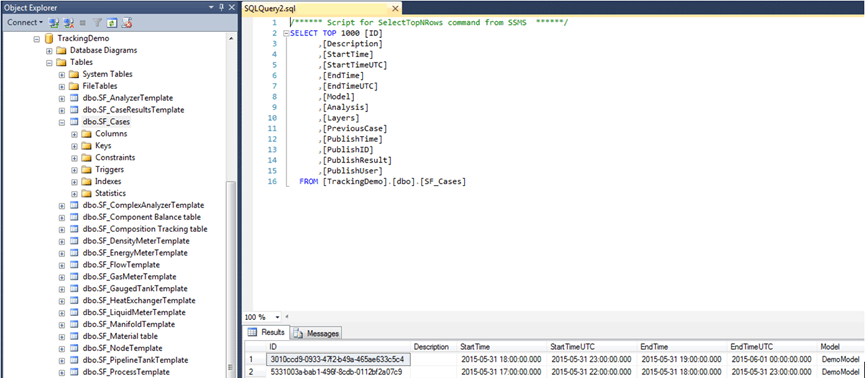
After connecting, you can navigate to the database and tables, as shown in the figure x.
Right-click on the table and choose Select Top 1000 Rows, as shown in the following figure.
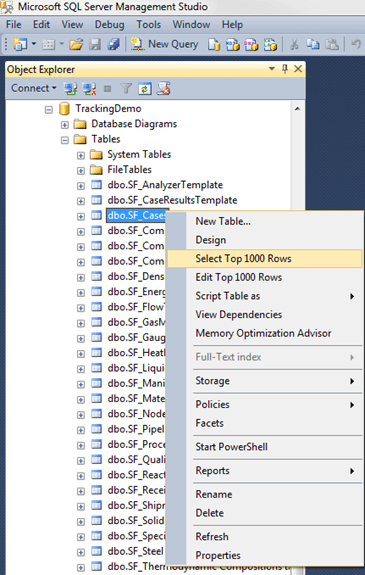
Your results appear.
 EXAMPLE: Results from Select Top 1000 Rows
The following figure provides an example of the results.