Saving and Checking In Changes
Saving Model or Display Changes
Changes that you make to a display or Model need to be saved in the database and/or the Model or display file (.pdi, or .svg). As you work, you can do a save operation by doing using one of the following methods:
Method 1
Selecting File > Save.
Typically, this is the likeliest place to save your work. This operation saves all changes in the database, as well as the current Model and display file.
Method 2
Selecting File > AF Check In.
This operation saves all changes in the database without saving the display file. You can use this option if you have made changes to your AF Database that are not directly incorporated in a display, such as modifications to Element templates.
If two or more Models are open when you save, database changes pending for all Models are saved, regardless if you select to Save or Check In.
Checking in an Element in AF Browser
When you check in a single Element in the AF Browser, it saves the changes in the database for that Element only.
To check in an Element in the AF Browser window:
Right-click on the Element.
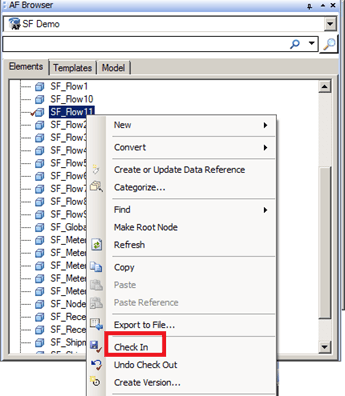
Select Check In.
Only the Element you have selected is checked into the database.