Key Points About Layers
The following are some key points to remember when adding layers to a model.
In Build mode, right-clicking on a symbol and selecting Assign to Layers displays the 'Assign Layers - [template name]' window showing all layers.
When you add a symbol to a display, it is automatically added to all active layers.
A one-to-one relation exists between ProcessBook layers and Sigmafine Modeler layers in a display.
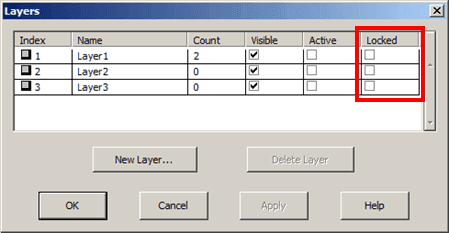
Using the Layers option from the View menu, you can open the Layers window in which you can lock a layer to prevent objects from moving to or from that layer.
In Run mode, you see only the visible layers.
When the display is in the context of a model, adding or deleting layers through ProcessBook adds or deletes the layers in the Model as well.
In Run mode, the active layers determine the elements that are included in a case.
You can determine the current set of active layers by placing the cursor over the Layer icon in the ProcessBook status bar.
 EXAMPLE: Assign Layers window showing all layers
![Figure 863: Assign Layers - [template name]](data:image/png;base64,iVBORw0KGgoAAAANSUhEUgAAASAAAADsCAMAAADjAIvJAAACtVBMVEX///+BgYDTz8bZ1MvX08zV0cnRzcXU0MgJJGrW0spBQUHZ1c5AQEHPzMT08/H5+fkGIGnu7Oni4NoCHmhISEj49/b+/flGR0fGw7ze2tN1dXXOysLTz8fU0MmQj44+XJY6VpNylMTY0shvj8D8+vicwOfg4ODNzMmJiYhlhLelye6LrdjV0MdoiLuYvOQgO30jIiJhgLSVuOH29vXc1suOsdyHqtUPKnBrjL1JZ6Hm5eIvS4o0UY4qKSeixexcXFpTcql5msl7ncx+oM6RtN9PT08qRoWEptMaMXAlQYHe3NXi3tWPjoyEgXtDYZsaNnpPbaSCo9HU0s/R0MwwQnRoaGl2l8efw+rk4dz19PL///3b189YdqwUMHQlOXHOz8zs6uSt0PTDxMTAwMG8ur5aerBzcW7V1tD89eOdnZzJysrc3N9YV1Zdf7OXmJd9e3milnr08OTGyMempaO4trIJCAnw7+5ATHFrbG3V1+BJUWpAhspMZ5pLVorl6vIvP2yVtNiz3vpZYnlBRGcPJF9PWXPs+v5la3dhea2JhXLm4djE2tGUjXaHhYEnd8RWWmtib5jb4+3Y2tfR0tPizpxhVogKFmOz0eqXkLD/6an//+wFO6JzXWGwrKjb9/+Ri4BCR3/b7vw8NjBwcXnO7PtfYm3998q/4/tjqeVhRWqvoX/83MKdvODDvbUbLmj56NjctaslJEDi0bGNg6PI3e15W3z6zLRfOi6fgmS2jZWYalmHXkFpbn4gXLTLmY/v1Mt9mLCmw8Jtg6S/xtuTp61+dZmg1PStztYuMlvWxavAso9XmNVCcb1BY6X4y4Xc4sSjqsJ7ve2AcWypekfk4LPKlFexgmWNZn9TOU5VTTiVlZPaq2qqVUHYwJGscYKpm7F5MzxrcqqBpZa+xJxvhoy3v8c4eKaVnjyiAAAACXBIWXMAAA7DAAAOwwHHb6hkAAAV/klEQVR42u2deVhTx/rHvycJIQn7DhEEFcEVFPcWq1Vxg1qvWnGpSt26UJdaW1uttb391V7bPm2tWiy9tVyucgFbtW51R8SiiKBQAUFF9iVhDSSEkOX3RxYSCIt6sAjzzvPAnHMmM3M+552Z933PSQ5lymgCkTYk+KKK4rJh2rWtWHZnBMJ2jrFlKn4RxfIQ038G49s6UE9L9SpaanHouMjpIi4LIptx2Ta6XaYAkKfb5GszCm1GrM1Q2kxR635Xq//5NDd1R6/ZGgCAq2ZrWPOBGACAVL3BAgCYGVxnJQBgTPMuStsP9UWW6NrWdpMXqKv9OABgq277QwB+QCkAVBjlsy4KoFi2Ntb3FXod89Uc9dKVE2kzeS2wKdqAVmRIzNeIQjsZwNLw4qqzHAC4qutRa1JqTjpQFPQxSWBIiQcAVgCAKgCAHADQADUfPUDjDPFI/hqXmMNlAbCB1OA0WqPJa0uhxG2pk06bjNBxQgs6rtDR4WjYGKEjREs6Ql3TVGs8mq615KPG08ynWcYdMdh0ejMLABjabU52Wis+zeKh/ldSUtKCj1lLIK6GyHzT0tLSDMa8E8rLy8vLUWNeY/gJNRZph5MGQ6c97YuZ8d0sHZ9W9QfVB/F4crk8iMcLkrz+eUPzFQJ8vZCjyeaoCYlkJR5oMbj4GjJMzX8zsXEVUlFaYml8OGHYxWatQblTDVwB95Ls5WPeNZjDAHAucPzVoDjqHXJWqxVHCQDJHRMSA+BJWu2WAwDXGCFhrOqwLZR2OGKFXx0LRubpAwpmfpJyexfSAF8gB4DXsAm8H7iaceahYRTgpUw+zgfABBRgKgAziAEzsQqUCpRGHYpAAZSa0KuupcDPbqKJHOSsOC0EMFVV8tsLMJd4mALWumFW5NoA2CSzX6rqU6ybh/T6BwAOQgBKMJQdapBNNQAzsWbEtdAgOYAGo4RY7MjPgEmXQqnrudorrh5iHF/+huq7GWl4ZYa31CbHSyqVUqn/KqgXpVdUVOTlyWQNDTIAgKARgEJUV1cngrhODEgkAJVTXEyhuBhFRUWFtraFemNuA9uZf/7Ke1O3i/jprDMaFZi+5LVcZRMAmDuMd4XrQC64M8G1wfU30zy1Q83ggutpEEOjQe0C0k1CPHRGg3RrmDx4aoDzxb0UQmpqDa6QdGfpUenxDZ97BZYDg94PHA0MyvCSmy8oRyWez/Da9M2NFzPP5QFMANjy6XxU+qUMzXy+1O3gHMckrgyNz0vXfb431GfXpht2K/N+LQIFQAWqcoB8eInvd+uBPsoH2m7k4OyD+qEAjgRmSVbVixsTbBaXW1tnNswfskk31tBahRzUgGnRIINd9roWKqP+D7h+ftpHjVwDDfK1/NbKs2/p5L657hWnDgXlulfE/oR0trecXzH/nyYQfGIzf+5gE+2UtKtAGD1zs/9fHiLxpYnUtvGDRgvsa38Jfu/5Et6KhjFxN78rgsrHx8cHUIH74frqdw4BRxJGlH+tNc2OvB+Qfg84EBj/2pCH5t8wl97JPzv+qGDb9WPNk3XbVi8tGgSjGgRlzRElsC6rwgQGgJybXvcQOVcuAjZT7wLYTH3GQx8sLLDLz9oJMK3vZW1pro+5dPyiyyLED6rum7TR5/m7a246lokzAt5/zZzDDE0IsXcFNswaMWL3cgp/efHni4JlJ3Lm9b+ydrN2oZ+XVho3EDNeyw0u+aswZvYD7MSMhiEz7tTozdZGhpiDGk8nVjEb7SomaWsV4xrVICitB18EIlIWwgCQYtLdj0bdKfvwhTuc7f8MnZfK2f7PtfMq22jco8RvMEPVfyNWm7ASn4v+A/hi9Dc/bv76fGpJ0jtZu39c67vAFbvPXrnyc6QKafOtb9wMvTcJM/rkJTbXcbZ8UfOG89xtN1ztH4jf9tFf7o0Msa6fg8BeSgWoBo13nsfQB7TWe+rK8G9P9b9/1yo+/OZWtll8+M2tbABZzqIpLet3ljkNL0Dl4F2AqDB/P9PMjn2x6lM3VwBVYhzMuLi7ZgxA3ZbnHQTg6+KjPOrlkICzUAn1DNEdTsDZ8v4xf811Cx6etZpr8YbMc9a2gXPxERbDvz0NAj0aZHwOqo68ANWhjwYFfGdtpQdo1+pj73hLUhwO1tQNeeHPfg+917zwZ7+HdsAHoxJrc+9opmb16HqrfGbVhIOLLl6eDXztPWxfVsxvg1wScqe891kAbDHpA4c/z7KWFgGqQpUKoLZvY4xgOrMCMQMAHBwApCNnhoa1iX/uCZvszQO4qVYRcBi98XamSeOtd4ZKW51PF89BWmmSvTJtfGmNcP34cVUCrYHHsrXpd9kbO5bAV8ovcRKbWRZKzQEXrqjBsqmi+LfGyA2LzNd86yThlQNOkiIVlidJCgG48cQ/nBqSkiRG0TIAB318DroW8p0w7KDaVFQBAN/UdRg4l3a8C/90oZPGvXAddsYaNQMHnMHwC1hxp8g1Q7riwVWseHBV5gChQ6P/VaMuq7CVHdSmq2FTDYjNjLpicj07yA/6vti4hHyKYsEGQDVkjgsy8/wTc7gUy9amXzIghm8aR90rX6T5Al7IweqwGc6fRP/UZCnK89BY0x7IAx8l4AOKLVdLl30qVndfrDYUVaA0trTOwlZpa9yx5aVKACgZNvEzjS9mDaDGtQhwRZErV635XM5VvWmIJWc9iS/Gk3ToizUDOua0plmbfhIN1QMkNu6siiqK4dq/ti1nVVwEV/VlMuKsUi1deSFMZ8YAQPD1Fo68UWe1LQ2CkhYNQitA4wL33FXojTemjw6Q9X2Fpj++LRjlAPASGTj0+rEOJhRGAkSt4kO+rcwZJ2OhIePBjjajHTpEhoRa+fMtCBnToAr7CgD2LRakYR/rwh0K7zZCHc4A0tFGFOhxYx1OrUMd+gp0tWXUrP2YmWEwqFXITD1LWzVHg4yJehWryDfcm6+ZpM3EIU8l3vlon7PufNF2AiQXHyke3DpAfK6eS7HM5NKRTxDZvUVLfNi9xcVz74oAPe9RPyARqgE1mJAbPEaFwarnMgiGDiARBAQQAUQAEUAEEAFEABFARAggAoh+YXVYQtm7tYNFS5FnU5QOwo4LMRlspZzZTiXUGzb1ZgYyof7xk9mTy5M0b5CU80Yn20vag0MxZCYdxYOUzmZu6QoDpFAwHyvRevWZiidNkpVHuflOwo7iQR2PH89LWw13eGVX2mkST9Iq2VZpkkF3ZGwZW+ZapEvRi6I5/BJ+CZ/bwI1cHrk8cnlk0Mmgk0EAgJNBJ9W7ljdwG7gNJfwS/tjoRdGLmj9exJaxZWyD89U2W9W6SxK7SoPkne2d7Z3tneGb04kr0bEG+Sav+1p/T7htUFChW6FbvfljJ0eB4yOrjMBR4Ch4/CbNC90M08mtM1+W19ChQQA2Pae90zvm6+spuzlxivuK+8Y1F7QNwCcfRIbpvmHi7AZkoGmJ6rdwjiZXunZ++eUNaQBH0XxDDByIAXCk4HjuumK/6ZlYwswCZ4axJTQBcpkRocmtBybnZwMcMMGRciBV3+djcqQcAGax60pG5T8ba7w41pM+DYKbXv6EuRScj7kF/Gkhe+8M/qJ+7welU/nTrg4MDRmS/31k1NRnxAjqrAY9uqvxkhcH0vhdrLLsoASb80F3L6VvZ034OT7r85Exm2bcevlZsRIVsWc6pUGPDuhEjhScIO/pE5q8LGz88g7879AX05Pr/ed455zC1mfHjGYunAk2ukaDvuF8FbYw3fmaeVNpYVDfFdSH50ocBt7P1Zu1e7cGuYOJxc5UbRjgkCT8FSq2qYtLrsbK7nEa9OieaBwD1bI/BhcOT0yktoaXBQTG5paKfxl06DZgFruOa7rjcqD4mdAgOlex/c3Zf+9pXLbNxSLU1/vkkrLV/5maivlDi5atSV+tSubge8n8yEsWMKPXP6PbZFRbtFGu15PpsoOSQ7S5PZNXnK799pf851bEWzam8Wb+y5/7tqWoxi9+RI11gMhS5MFo4iStzhySOSRziJRjmP4bEhESEdq3QD8xlAwlo8lElwAAzZsmSoaSodT/wL7QfSERIRHLWlaubjJzSOaQTNMJIktd8shrI8Vdsb0lo8UXM6s++xO0T1jtXTcCh2yqNUnq4GN1yKbaRtNLGZsjlbGNp1PPJbaRcrxyvHK8WvuN6t1ebX3MjN1WU+qOcKQcKafapp20dGFnfLHOAJoV0SPjZUviaHJWFYmbdbrYZPFljwGUTVNMGgiQibUPG/5gG2VBBbVVMMq+DMkjV/ayoD2ApiM/a53Vm3WyhjbLDXJkC/yjd27tdYAwWO+LKGIGgFSzJK9lgsTX5ha8H+llX+a19gORR+3n/x2xwjHRKbf3aVBryVemj46/xD4Wb/fjbLeMdM7KiXdSAt9/FfguO/kTAghosI/wOc9iMMPC7lgylP/16aeqOrYNQLh9qicIIEQ5ZBwrmdqwMfHgNbsb1i47m0YfpbgAwv3PDQtCb7/1LADqro/198zaIxBlfO9tMe6TVav6mGA9EOVhZh+E3q5B/aMjj/uY34o8kADcnKJo+ODP90IQPvs4gEErcT8yefSK3gcoS5eroGxD0j5K4zVlfhicsFUVI1mJON8L2Bs8qRzI316TmbYkrkdpUCdcjYpg5jHtb6iwkxP1j2aEvr74mT31USU0uRrM83hPm1cZumWqfywGevvjLwBy1rVxYBhAAEGB1boxyGN+CZAHqFo6qxu+1Dqr+9p1VsP9RzNyLr3a+4bYt7/9u1PO6ug/TsecDifOKoBUs1Fb7sTFHWYXvJ8qs5+3JfJTkUftR/n2k8MnHyKuBoAHSbsnrLrEXqt2VndbhE68kzLp2yDHDGbAsq3kKVegaVp0/paLyQlhUySWDGW0bz/Vv6L8g4AHu08zdhJAiLJnDT47dezGUQfj7W4kjfL8zv34QjsAgjlh8il9ezsga6Auiff98qw9AlHGL94W49aFhY0wwXrg9EmrcO7rsl4OqD+PF+EzdxrvwF3g5kBFQ33TWnOe+2wAcB6o4Pxnfc+KSXf0GLDKnC0Zprqs/W76uHRu33NjbMQ1LiMWPM+JD8pIDj8xnGPt9+WEyQ/jQSn4Jf3ffFZOnV+nlJrT8RhwRfAG/KjZlLdwVrcFE2cVzPPNv5owOEr/yJIHL75BXA0A+9pazKJAvu0D8nUoIgQQAUQAEUAEEAFEABFARAggAogAIoAIIAKIACKAiBBABBABRAARQAQQAUQAEUBECCACiAAigAggAogAIoCIEEAEEAFEABFABBABRAARIYAIIAKIACKACCACiAAigAgCAogAIoAIIAKIACKACCAiBBABRAARQAQQAUQAEUBECCACiAAigAggAogAIoCIdAKQuIee+n3Q8mvAquwFE3f0SECD+52jARAD7xZFUz0S0F0vqxo88euzHISmgad66vzClDg88auM0fxr5D1QOhganfvJdgogqxgRAogAQjd5O5StH21tX7YRdrJkE4uuNqkFv3YpICXmel6mp6uTd78Z1smiDtWm02kCFD/lV3pfI9pyRMqGW9xS0tFTC5eAWs/tnSurGu1xMpAWPm7KtMudn1Y6+WYWA2Gjf8ISGnoaxXJ9hNJev1v8RotlaDXR+6q8i99Qx3zuBA3uK3NN46MUX/MdLeaYDAPqn8Ir/BpNnryrC/DXWLLM/43iyBo+8O98CWSbEnjND+VVIznRLmOv9ZHe61oIL9QA5WXGbAXH4sPXHuJe9wMUsvJ/ZxCd4C7ksAIX8aMkxV3IJ7BgQ8au46WvGTs2Zh97mNNxRrcDFLiy1i8F0uFuN5dZsd+YtPhMV04Oxy5UHnDISg447gfrWFXwJb9UrqxsOpXKDSikpMADy+43Bzne5lkezQizj0sB6x7zc6sVXalAu643vjHnJVX9x79T1JuKmCm7qbkznf/0ol6Zu/IVauvcv/lFtMal4iuL6ufSPp4y5CG7zl+QFNaVfBwnmj6M9mewdhWJFiLuSj1rUO2ajbt5KXB4sXbdD3FX6rvjKjZrVrjyNi958rhZs/fOMInpSj4YU1jUcNWdofwq1PJaavmZPnjlQ26fSyamlkG2DZmpLnFp3XOZXw5zjEESVG977Qse3sVL+QPAQeEUI7qTEsA9fXOZXDnf5dCAs4WKHUtTHMy7pR2U3MC5GLK8kco594fnD+fHeffpQjrJbq5L/xjk2zcm9+q09Vz1PglT4WnZv3jGHMWuAN9uqUF7msIuFw0skL3AR/2F2WtMupCQYH9d4c79A46JU5sqLdxFAADpCxNrr+87M9kkYnQSBnRDQILTX18bcSvl0PQbMtZ+6uif4bZdqEIRByzrlt6SvLzgxVsLYqSldsAZOxN3r1X8f/S1XTW17kwNuqElLYj4Obgv/hfjXOJefLpKyuhSRyYikjEXe6jJVXP7fgpKxXIsVfFLg/v+/ktBcN/YaEo1mNEdXQ2XWIDBEDCKIXAs62JHTymPBbzvKWPBgHMZBC5lApdYgOESCzCcy+51S19MwNCNXAHjaXja99SzhIABCBjqNgV0tv4YgLzK8p+83UtLgJ4ZtIfixE+hT39xUCnoONtFl58CIPvrB2jQ3sBHCXya/r4mOpQOQBdf7XJATWCsqnN88q7egEXnC7v7Kr6fSM+AuTa8qzWo6PqjnFp7cl3YWWet0jIdAnrWkOEydOltH1qXPaVdZ28cKlW0PWNCMR9honyM2z6Q0UdILux0T5XUM7OKMZT4Gxzlv+/eAnl4gQAigLqZJf24Qt8jLExGp5+beYYAOVRbjqSlolsjLxx89elp0CPbQY8rqo1HaumpqXFpxdWqpzP/PI4d9PjiWECLMcN6U2rTI+cgwNSKjlqqe+okDTQKn7Ued8dl3pElB7GDWjCRyzV/AMfiyBDH7gSIyWAr5cyn0dL4ghLjk7Rj8WFeuVnxYbMyMTD5LbmNjbi9RYoxRq7IaXg6SzxDZsL6+6/RmC3VISbCLdXDWQctpwDA0HrfS32qitHLLOl25fB4AG9MT8Smo0Cey2Dn2qaEYgJIJ5e/gsWVhTLLG9i/tjptym1c3L/elnePANKIe/Ye4NP+mdVflFzZVzWxPGPu6mr2y2Egq5hG8vv4DvhNOJb64u2dAeiXcNgleTJznT9Z5pvFb9SZP4D8kKWsWFcH4B97QaWCTNLNkpo1A7hRbVJWjllxtlX/mZN5pSaCRzRIK2P9AIzNpQo3Xpho+vuuV+oumHr6nr9HNEgtp0418YU41cQvV7jgLeFLe/L7+L5FVSrJENOZ0hXlDDhWlDNY5VAxVBhbwzjIVpI5SCcCMNR/lEytQrGUxFltW6FMK9Ebg/aAY1mnipW2f9i2hwIyvWgqd3oKv5bwzA4xsemEEBUdomzKtu2JGrQ4KmfkUFpqykznoAfe9lHSGCcUPqVh9lRv+zCqmmiry0TZE1cxJX2BXSV5eAHkrgYBRAARQEQIIAKIBjvINCiWUDIuMrt6UEtPWClFhIVRaXQo4VLO1tmERJviUkM5iQmGdnwaxv8DliF1zPvehc4AAAAASUVORK5CYII=)