My Sigmafine
The My Sigmafine area of your dashboard provides you with listings of all accessible entities you have access to. The entity tabbed panels (Recents, Created by Me, and Shared with me) each include an additional set of Filtering toggles that allow you to further narrow the scope of the list on each panel by application.
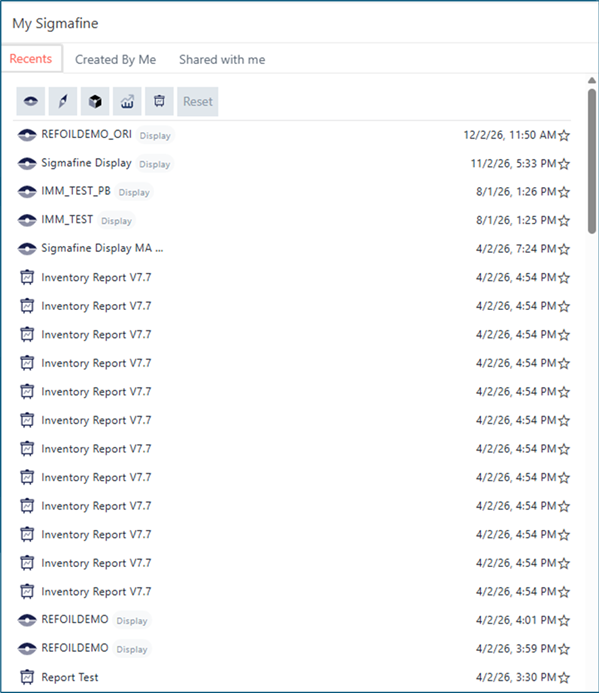
The following table provides an explanation of the tools and tabs found in the My Sigmafine area of your dashboard.
My Sigmafine Tools and Tabs
MySigmafineTabbedPanels
| Tool/Tab | Description |
|---|---|
| Recents | The Recents tab opens a panel that displays a list of your most recently used SFHub entities. If you are using filters only those entities matching those filters, are displayed in the list. In the current version, Recents supports Displays, Reports and Analytics. |
| Created By Me | The Creted by me tab opens a panel that displays a list of all SFHub entities that you have created. |
| Shared with me | The Shared with me tab opens a panel that displays a list of all SFHub entities that have been shared with you or shared publicly. If you are using filters only those entities matching those filters, are displayed in the list. |
My Sigmafine: Filter by App
The My Sigmafine area of your dashboard includes a set of filtering icons that allow you to filter the entity lists (Recents, My, and Shared with me) by SFHub applications. The application filters allow you to narrow the scope of the lists to only those entities related to one or more specific SFHub applications.

Filter by App - Icon Descriptions
The following table describes the application icons and the entities they support.
| Icon | Application | Application Entities |
|---|---|---|
 | SFHub Visualizer | The SFHub Visualizer app is used for working with Displays. |
 | SFHub Explorer | Though the SFHub Explorer app has not been released yet, the dashboard currently supports SFHub Explorer Bookmarks. |
 | SFHub Studio | The SFHub Studio app is used for working with Projects. |
 | SFHub Studio Analytics | The SFHub Studio Analytics app is used for working with Analyses/Analytics. |
 | SFHub Studio Reports | The SFHub Studio Reports app is used for working with Reports. |
 | Reset | The Reset button is used to reset all filters to applied, thereby allowing entities from all SFHub applications to display in the lists. Click this button to reset all application filters to "applied" (turned on). |
Although the SFHub Explorer application is not yet released, SFHub Explorer Bookmarks are supported.
By default, all application filters are applied (turned on), though each works like a toggle, making it is easy to apply and remove filters as needed.
To remove a currently applied application filter, simply click its icon; to reapply the filter, simply click the icon again. The icon's background color indicates the state of the associated application filter applied or not applied.
Gray: Indicates that a filter is currently applied; entities from the associated application are displayed in the My Sigmafine Recent, My, and Shared with me lists.
White: Indicates that a filter is not currently applied; entities from the associated application are not displayed in the My Sigmafine Recent, My, and Shared with me lists.
Color indications for applied On and not applied Off AppFilters

In this example, the SFHub Visualizer, SFHub Studio, and SFHub Studio
Analytics app filters are applied On, while the SFHub Explorer and
SFHub Reports app filters are not applied Off.