Log In / Log Out
Sigmafine uses your company's authority to authenticate you as an SFHub application user. The termauthority is typically an authentication system, such as Microsoft's Active Directory that, among other functions, maintains a database of network user credentials. These credentials are typically issued to you by your administrator or a person in your IT department who takes care of maintaining the authority database. Therefore, should you forget your user name or password, you will need to follow your company's policy for handling login credentials.
SFHub applications currently support only Microsoft's Active Directory as an authority.
Log Into SFHub
To access SFHub applications, you are required to enter the credentials issued to you by your network administrator.
Prior to logging in for the first time, check with your Administrator to ensure that your account has been enabled for access to SFHub applications.
To log into SFHub:
Open your browser.
In the Address box, enter the URL (name>SFHub) provided to you for accessing SFHub.
The SigmafineHub® Login page displays.
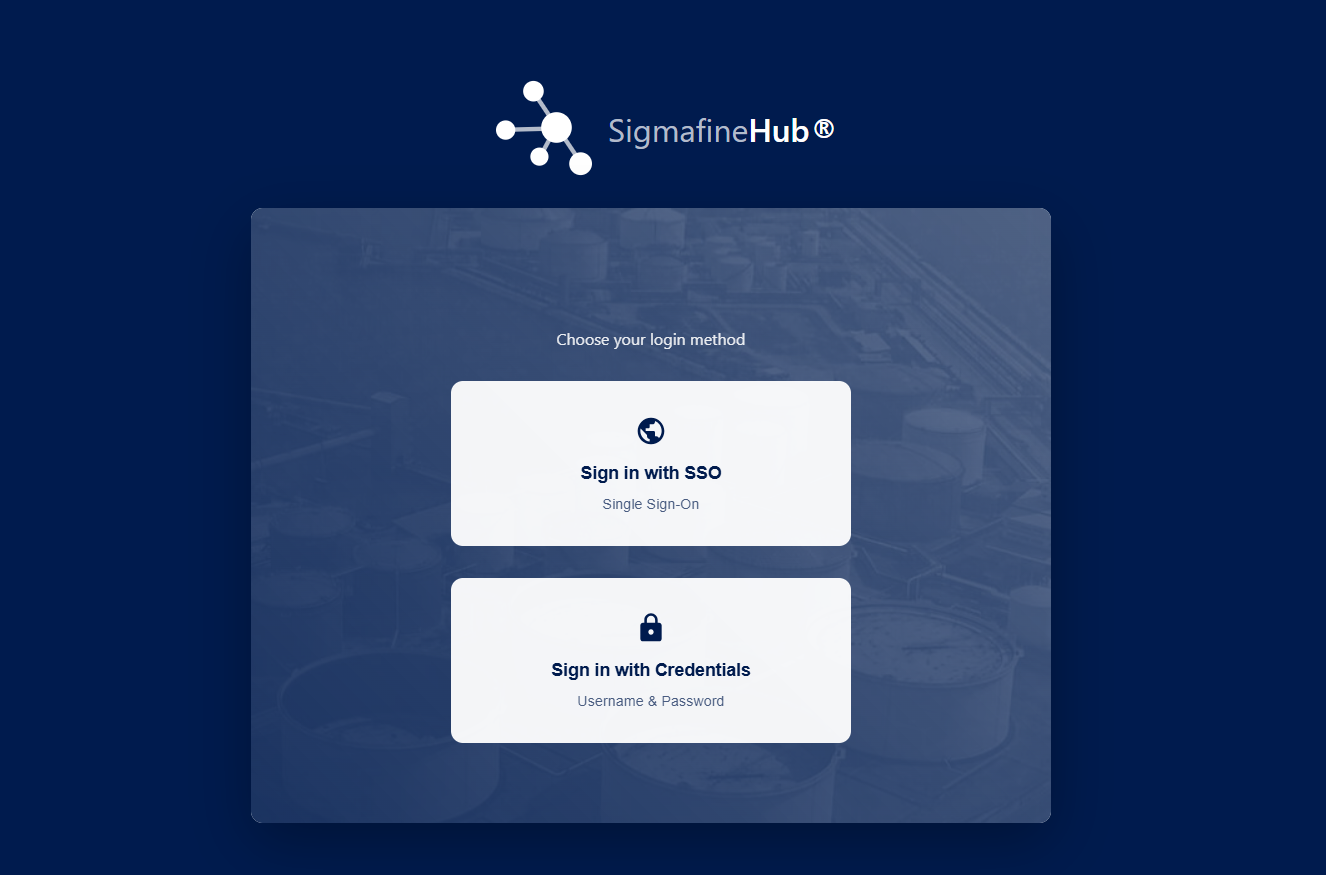
Choose the login method by clicking on the desired tab:
Sign in with SSO - Use the Single Sign On (SSO) method if your network administrator has configured SFHub to use SSO for authentication.
Kerberos Authentication RequiredSSO authentication is only available when Kerberos authentication is enabled on the SFHub server. Contact your network administrator to verify if Kerberos is configured for your environment. (See SigmafineHub SSO Configuration)
Sign in with Credentials - Use this method to enter your domain credentials for authentication. When you select this method, the boxes for entering your login information display, as shown in the below figure.
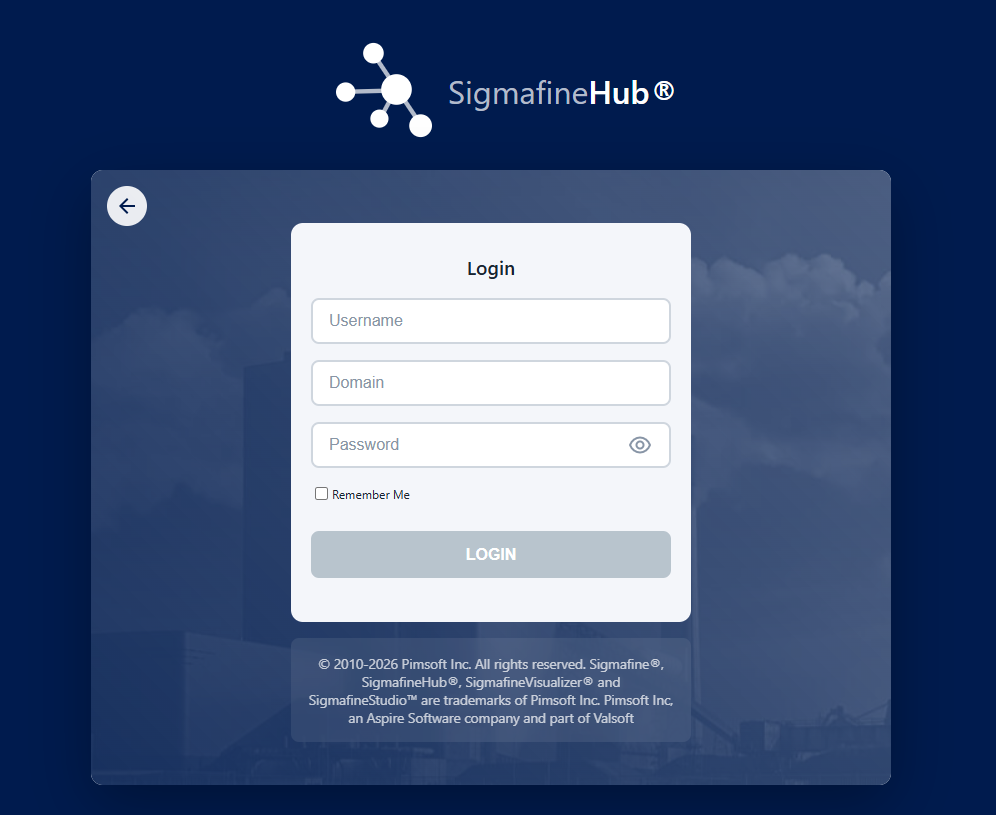
In the Username box, type the login name that you use to log into your network domain.
Capitalization is not necessary, as the user name is not case-sensitive.
In the Domain box, type the name of the domain with which you are associated.
Like the user name, this name is not case-sensitive.
In the Password box, type the password that you use to access your network domain.
tipPasswords are case-sensitive. Therefore, you must type your password exactly as it was issued. For example, if your assigned network domain password is 'roYal25Gi' you must type '
roYal25Gi'.Click the LOGIN button.
Your personal SFHub Dashboard displays.
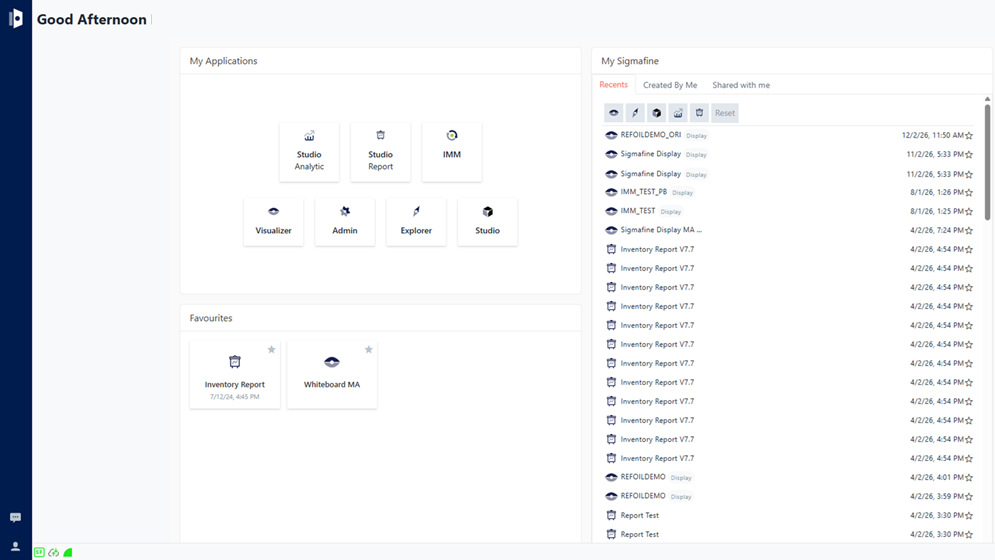
Please refer to SFHub Dashboard for more details about the dashboard.
tipIf you have access to SFHub Visualizer, we recommend that you set your preferred Time-Zone immediately after logging in and choosing SFHub Visualizer for the first time. See "Localization Settings" in the SFHub Visualizer User Guide.
Log Out of SFHub
To log out of SFHub:
In the bottom-left corner of the SFHub command bar, click on the
 User icon.
A menu appears.
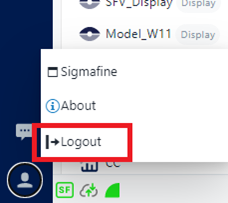
Select Logout from the menu.
You are logged out of SFHub and returned to the SigmafineHub Login page.