Importing Values into Sigmafine Analysis Cases
You can use the Sigmafine Data Loader to bring values directly into Sigmafine analysis cases. The command line arguments for the Dataloader.exe executable file and associated data file locate the Attributes within the Element and write the data file values as Case inputs to a specified Model analysis. The Case to which the value is written is based on the configuration of the command line arguments and data file.
When writing to cases, the Data Loader becomes an additional manual step in the execution of a case. The steps for running a Case become the following:
- Step 1: Create the case.
- Step 2: Run the Data Loader to write inputs to the case. Repeat for each data file.
- Step 3: Collect Transfers.
- Step 4: Collect Inputs.
- Step 5: Run the Analysis.
- Step 6: Publish the results.
It is important to note that you verify a default AF Case Runner control setting, for this sequence to be successful. Make sure that the AF Case Runner control never resets inputs for the Case on the "Collect Inputs" step. If the inputs are reset, you lose the data that was imported on Collect Inputs.
Use the following procedure in PI System Explorer, PI ProcessBook, or the Run Analysis Case function in the Sigmafine Excel Add-In, to set the option to never reset all results.
After creating a case, right-click the Case Runner and select Configure as shown in the following figure.

The CaseRunnerProperties window opens.
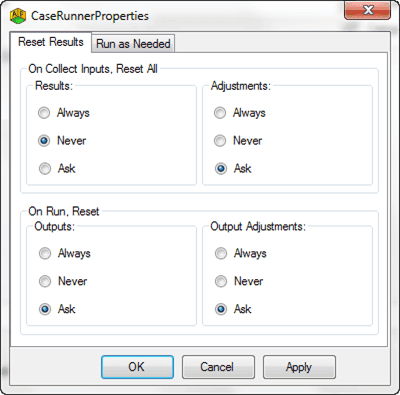
Verify that the option for 'On Collect Inputs, Reset All' , Results is set to Never as shown in Figure 938.
Importing a File into an Analysis Case Using the Data Loader
The following is an example that shows how to import a file into an analysis Case using the Data Loader.
- Open a Command window.
- Click on the Windows Start menu icon.
- Click Run.
- In the box that appears, enter
cmd(shorthand for 'Command' prompt). - Set the working directory to the location of the Data Loader executable file.
- At the command prompt, enter:
cd C:\Program Files(x86)\ Sigmafine\Bin
Execute the
.batfile created for the Data Loader.A sample file
dataloader.bat.newis provided. Make a copy of this file and name itdataloader.bat.At the command prompt, enter:
dataloader.bat
Messages about the execution appear in the Dataloader.log file, which is located in the %temp% directory. If the debug command flag is set (debug=yes), detailed information is written into the Dataloader.log for each value read from the data file. If debug=no, only execution errors are written into the Dataloader.log file.
 EXAMPLE: Log File for Successful Execution of the Data Loader
The following text is an example of a successful execution of the Data Loader as seen from the log file:
DataLoader 15-May-11 10:33:12
Execution Started...
DataLoader 15-May-11 10:33:22
DataLoader running in Case context.
DataLoader 15-May-11 10:33:22
Number of lines processed: 10
DataLoader 15-May-11 10:33:22
Writing starts.
DataLoader 15-May-11 10:33:24
Writing ends.
DataLoader 15-May-11 10:33:24
Execution finalized...