Sigmafine Hub (SFHub) - SSO Configuration Setup
Windows Authentication (Kerberos) - Customer Implementation Guide
- Audience: Customer IT / Active Directory Administrators, Security Teams, and SFHub Administrators
Purpose: Enable Kerberos-based SSO for SFHub.
Success criteria:klistshows a ticket forHTTP/your-sfhub-hostname.
Scope: Server (IIS) + client trust configuration.
Table of Contents
- Overview
- Authentication Model
- Prerequisites
- 3.1 Environment Requirements
- 3.2 Glossary
- SFHub Server Configuration (IIS)
- Service Principal Name (SPN) Configuration
- Client-Side Trust Configuration
- Option A - Site to Zone Assignment via Domain GPO
- Option B - Browser Policies via Registry (Machine-Level)
- Option C - Manual Per-User Local Intranet Zone (Testing Only)
- SSL Certificate Requirements
- Validation and Verification
- Troubleshooting
- Appendix A - Quick Deployment Checklist
- Appendix B - Navigation Index
1. Overview
Sigmafine Hub (SFHub) supports Single Sign-On (SSO) using Windows Authentication. When configured correctly for Kerberos, domain users can access SFHub seamlessly without entering credentials.
This guide explains the server-side and client-side configuration required to ensure consistent Kerberos-based authentication across environments.
2. Authentication Model
- Authentication mechanism: Windows Authentication (SPNEGO / Negotiate)
- Primary protocol: Kerberos (recommended)
- Fallback protocol: NTLM (optional)
Browsers will only send Windows credentials automatically to sites they trust. If trust is not established, users may be prompted for credentials or authentication may fall back to NTLM.
3. Prerequisites
3.1 Environment Requirements
- SFHub server is joined to the Active Directory domain
- Client machines are domain-joined
- Users sign in using domain accounts
- Access SFHub using a DNS hostname (not an IP address)
- Time is synchronized between clients, SFHub server, and domain controllers
3.2 Glossary
| Term | Description |
|---|---|
| FQDN | Fully Qualified Domain Name (e.g. sf-iat-02.sigmafinehub.dev) |
| SPN | Service Principal Name used by Kerberos to identify a service |
| Local Intranet Zone | Browser security zone where credentials are sent automatically |
4. SFHub Server Configuration (IIS)
Note
In standard customer deployments, the SFHub Setup Kit automatically configures IIS as part of the installation process. This includes:
- Enabling Windows Authentication
- Disabling Anonymous Authentication (where applicable)
- Configuring the Windows Authentication providers (Negotiate / Kerberos, and NTLM if allowed)
The steps below are provided for verification, validation, or troubleshooting purposes, and for scenarios where IIS configuration must be reviewed or adjusted manually.
4.1 Enable Windows Authentication
- Open IIS Manager on the SFHub server
- Select the SFHub site or virtual application
- Open Authentication
- Enable Windows Authentication
- Disable Anonymous Authentication (recommended for SSO)
4.2 Configure Providers
Under Windows Authentication > Providers:
- Ensure Negotiate is enabled (required for Kerberos)
- Remove NTLM if Kerberos-only authentication is required
Leaving NTLM enabled may mask Kerberos configuration issues.
5. Service Principal Name (SPN) Configuration
Kerberos requires an SPN mapping between the HTTP service name and the account that runs the IIS application pool.
5.1 Identify the Application Pool Identity
Example:
Application Pool Identity: DOMAIN\\sfhub.service
5.2 Why the SPN Uses the Deployment Hostname
Kerberos service tickets are requested for the exact hostname used in the browser.
Example URL:
https://sf-iat-02.sigmafinehub.dev/sfhub
Required SPN:
HTTP/sf-iat-02.sigmafinehub.dev
Each additional DNS alias (CNAME) also requires its own SPN.
5.3 Create the SPN
Run as Domain Administrator:
setspn -Q HTTP/sf-iat-02.sigmafinehub.dev
setspn -S HTTP/sf-iat-02.sigmafinehub.dev DOMAIN\\sfhub.service
5.4 Verify the SPN
setspn -L DOMAIN\\sfhub.service
5.5 Remove the SPN (If Needed)
setspn -D HTTP/sf-iat-02.sigmafinehub.dev DOMAIN\\sfhub.service
6. Client-Side Trust Configuration
Browsers only send Windows credentials automatically to trusted sites.
Choose one of the following approaches:
- Option A: Domain Group Policy (best for managed environments)
- Option B: Browser policy allowlist (machine-level)
- Option C: Manual per-user configuration (testing only)
7. Option A - Site to Zone Assignment via Domain GPO
- Open Group Policy Management Console (
gpmc.msc) - Create and link a new GPO to the target user OU
- Navigate to:
User Configuration
  Administrative Templates
    Windows Components
      Internet Explorer
        Internet Control Panel
          Security Page
            Site to Zone Assignment List
- Enable the policy and add:
| Site | Zone |
|---|---|
https://*.sigmafinehub.dev | 1 (Local Intranet) |
8. Option B - Browser Policies via Registry (Machine-Level)
Registry Location
HKEY_LOCAL_MACHINE\\SOFTWARE\\Policies\\Google\\Chrome
Required Values
AuthServerAllowlist = *.sigmafinehub.dev
AuthNegotiateDelegateAllowlist = *.sigmafinehub.dev
Restart the browser or reload policies via:
chrome://policyedge://policy
9. Option C - Manual Per-User Local Intranet Zone (Testing Only)
- Open Internet Options (
inetcpl.cpl) - Go to Security -> Local intranet -> Sites -> Advanced
- Add the SFHub URL
- Restart the browser
10. SSL Certificate Requirements
- Use a trusted CA-signed certificate
- Hostname must be included in the certificate SAN
- Untrusted certificates can cause credential prompts or NTLM fallback
11. Validation and Verification
11.1 Verify Kerberos Ticket
klist
Confirm a ticket exists for:
HTTP/your-sfhub-hostname
If everything is configured correctly, you should see a Kerberos ticket for HTTP/your-sfhub-hostname. This indicates the Kerberos ticket was successfully issued for the SFHub service.
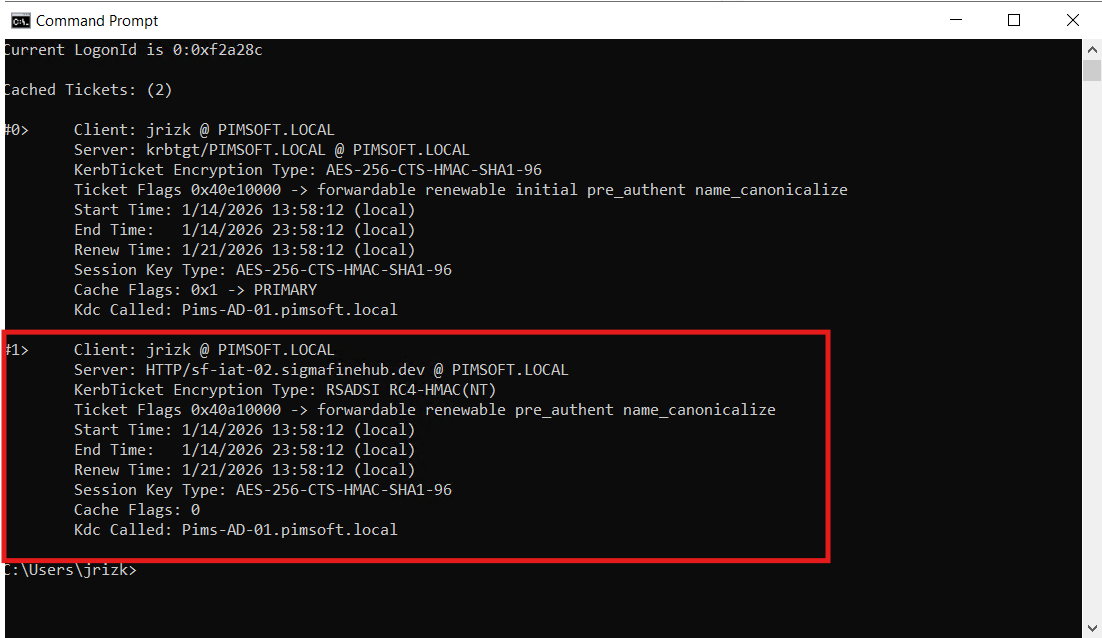
[OK] If the HTTP/your-sfhub-hostname ticket is present, Kerberos SSO is working.
[!] If it is missing, review SPN setup and client trust configuration.
11.2 Verify Browser Policies
chrome://policyedge://policy
Ensure policies show Status = OK.
12. Troubleshooting
| Issue | Possible Cause |
|---|---|
| Credential prompt | Site not trusted or certificate not trusted |
| NTLM used instead of Kerberos | SPN missing or NTLM enabled |
| Works on one machine only | Policy not applied consistently |
Appendix A - Quick Deployment Checklist
- DNS hostname resolves to SFHub server
- Windows Authentication enabled in IIS
- SPN registered on application pool identity
- SSL certificate trusted and valid
- Client trust configured (GPO or browser policy)
- Kerberos ticket validated
Appendix B - Navigation Index
- IIS configuration: Section 4
- SPN setup: Section 5
- GPO configuration: Section 7
- Browser policies: Section 8
- Verification: Section 11
- Troubleshooting: Section 12