Add the Web Part to a Page
The second step in adding the Sigmafine WDE Web Part is to add it to a page.
To add the WDE web part to a page:
In SharePoint, navigate to the page where you want to install the web part.
Click on Edit to open the editing page options.
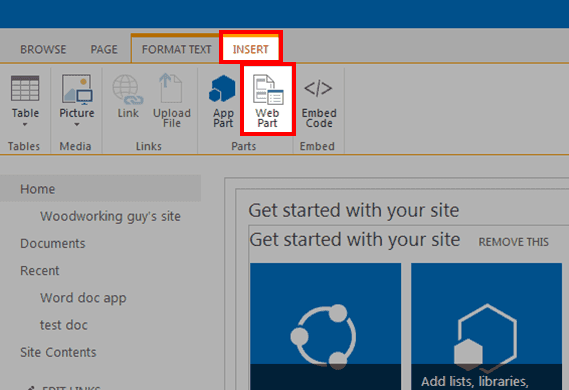
Click the Insert tab.
In the ribbon, click on Web Part.
The Web Part Categories and Parts list panel opens.
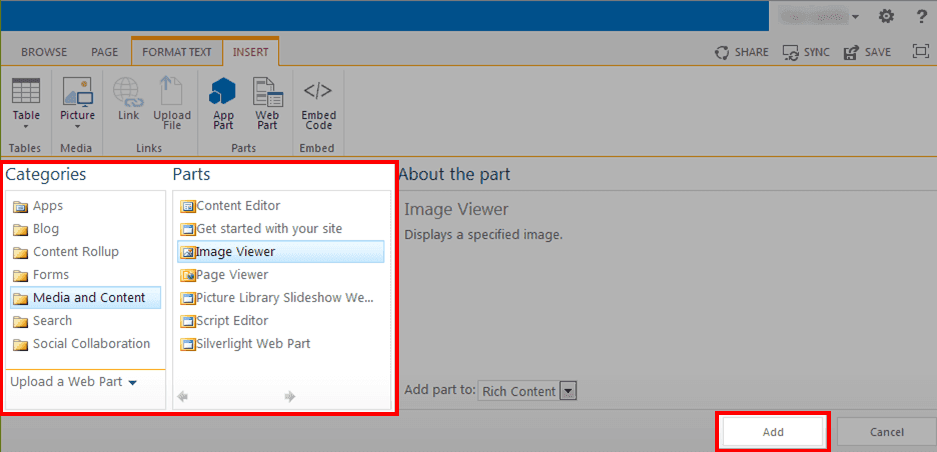
In the Web Part list, select the part Sigmafine Tabular View (the figure above is just an example and does not reflect the actual selection to be made).
Click the Add button.
The panel closes and you are returned to the editing page.
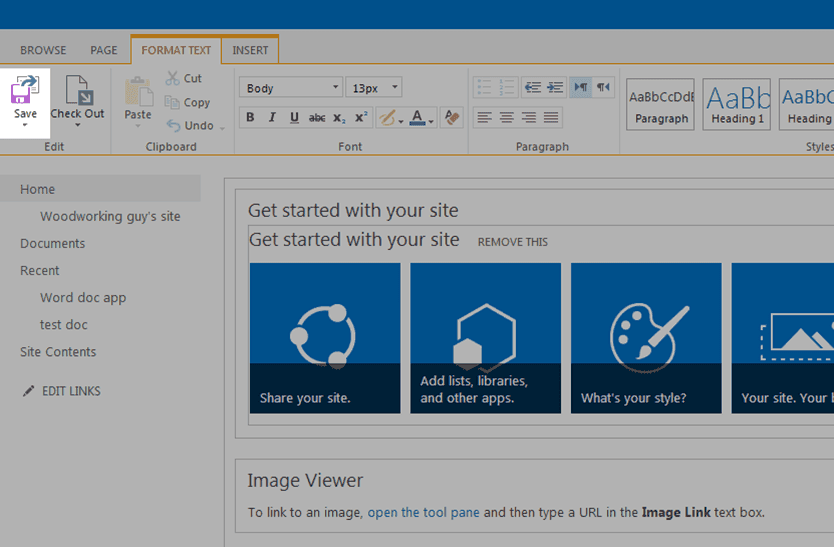
In the ribbon, click on Save.
The Web Part is included in your SharePoint Web Part page.
Note:
If WDE displays a loading exception error the first time you attempt to load it, you can safely ignore that exception error. Sometimes, this error happens due some internal MOSS DLL loading delays.
The top-level site is called a parent site, and the sub-sites built within it are called sub-sites.