Configure the Transfer Calculation Analysis
To create a new transfer Calculation analysis, follow the steps below:
Open PI System Explorer.
Select the Model for the analysis.
In the navigation pane, select Sigmafine Analysis, as shown in the following figure.
Click on the Model down-arrow and select the corresponding model.
Click on the Analysis down-arrow and select the New option.
The Choose Analysis Template window opens.

Click OK.
The System Explorer creates a new model analysis and opens the Analysis Properties window.
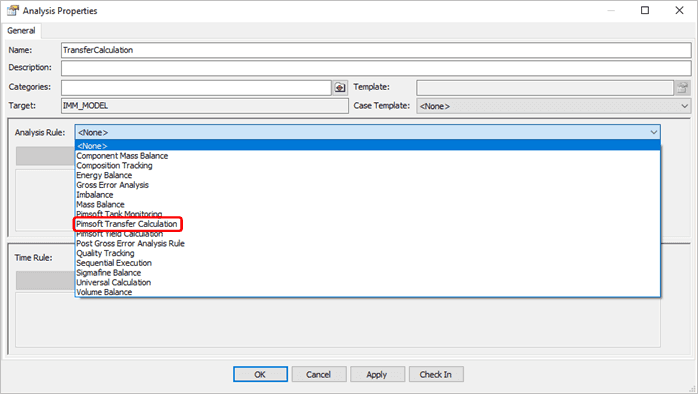
In the Name box, type a name for the analysis.
Click on the Analysis Rule down-arrow and select the Pimsoft Transfer Calculation rule.
The rule is listed in the Analysis Rule table.
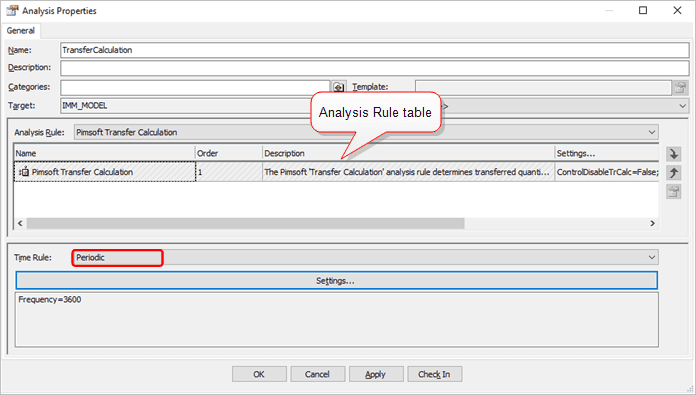
Click on the Time Rule down-arrow and select the Periodic option with a frequency of 1 hour.
The Time Rule and Frequency appear in the Time Rule panel of the window, as shown in Figure 1703.
The next step is to create the Child Analysis Rule.
Right-click on the Analysis Rule in the table and select New Child Analysis Rule, as shown in the following figure.
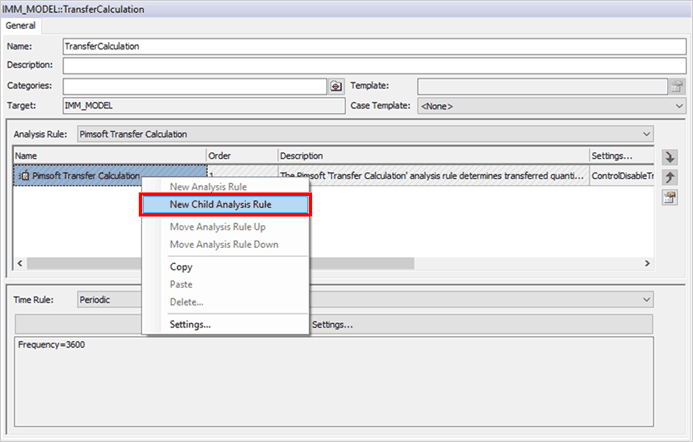
The Select Analysis Rule window opens.
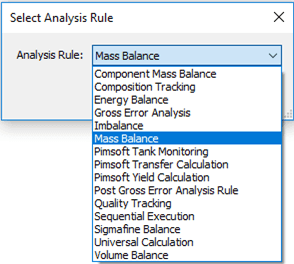
Click on the Analysis Rule down-arrow and select the analysis to be used by the Transfer Calculation to perform the balance analysis.
Click OK to save your selection and close the Select Analysis Rule window.
You are returned to the main model panel, in which the new child analysis rule displays below the parent analysis rule.
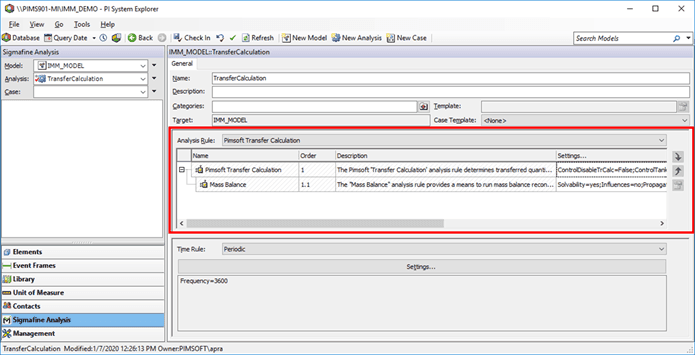
Click on the Settings cell of the child rule, to enable the ellipsis (...) button. as shown in the following figure.

Click the ellipsis button to activate the analysis configuration.
The configuration requires that elements have specific attributes and attribute properties. For more details regarding the attributes and attribute properties, please refer to Transfer Calculation Attributes Rules.