Create First Case
When starting a Composition Tracking analysis, you must create an initial case to establish baseline inventory quantities and component compositions. This first case serves as the foundation for all subsequent tracking operations.
This guide covers:
- Creating and configuring the first case with appropriate time boundaries
- Collecting inventory data through the Collect Inputs process
- Initializing component compositions using the Composition Tracking Viewer
- Handling empty tanks at initialization
- Importing composition data for multiple inventories using the Data Importer)
The composition you define in this first case will be used as the starting point for tracking how component mixtures change over time based on flows and transfers in your system.
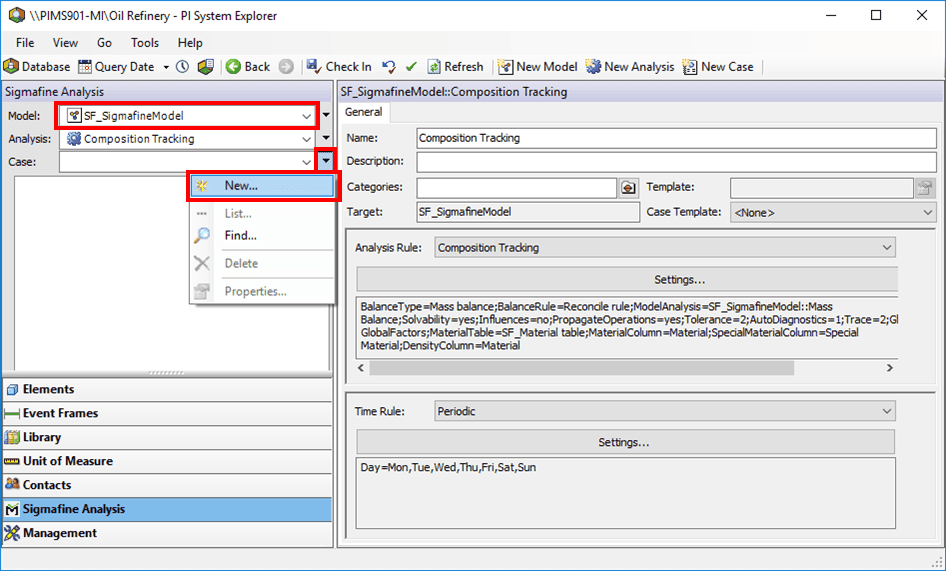
In system Explorer, select the Composition Tracking Model analysis for which you are creating a case. Then click in the pull-down button for Case and select New.
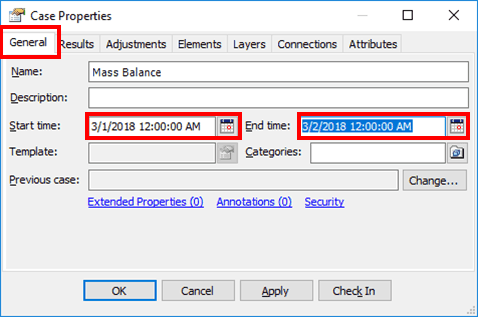
When you select New the Case Property Dialog Box will appear. In the General tab change the Start time and End time to desired dates. Change the times for the Composition Tracking case to match a case for the source analysis (Mass or Volume Analysis). This manual change of times is necessary to start the case series when a source analysis is selected.
 info
infoNotice that there is no previous Case associated with the Case created.
Click OK to save your changes and close the Case Properties window.
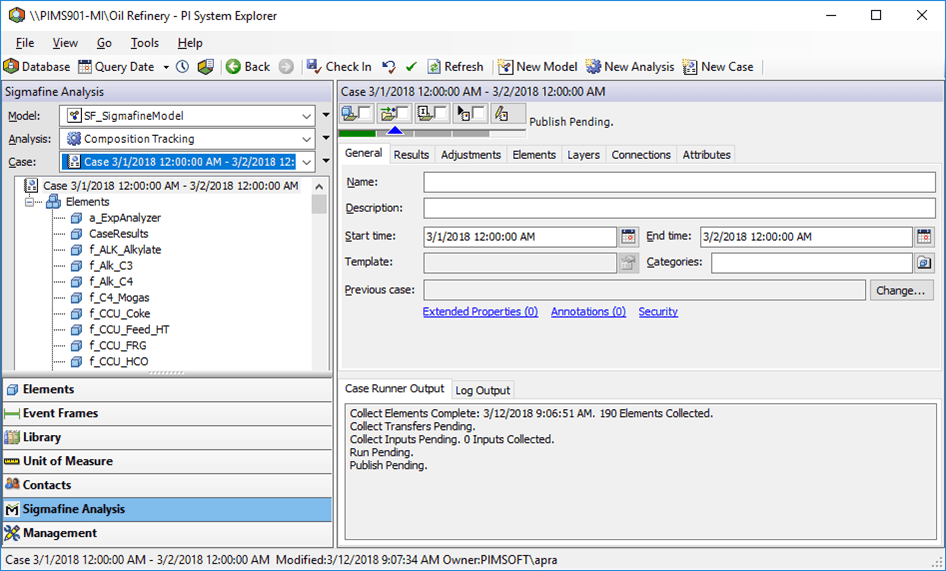
Run the Collect Inputs for this first Case.
The purpose of the Collect Inputs is to collect the inventory data for the first case. This will be used to initialize the composition tracking analysis.
infoCollect Elements is done automatically when you create the case and the Collect transfer is done is executed when you Collect Inputs The other options in the Case Runner Run and Publish are not needed for the Initialization Case.
Initialize the composition.
For the first case in a new Composition Tracking analysis rule, you must initialize the composition. For each storage vessel (inventory), the initial mix of components requires configuration. For subsequent cases the mix will be predicted based on the flows and transfers to and from the storage vessel.
To configure and initialize the components, use the Composition Tracking Data Viewer. This viewer presents the information contained in the composition data attribute in a table form for easy viewing and entry. The values for the composition can be in terms of mass, percent mass, volume or percent volume. See section "The Composition Tracking Viewer" for more details about using the Viewer.
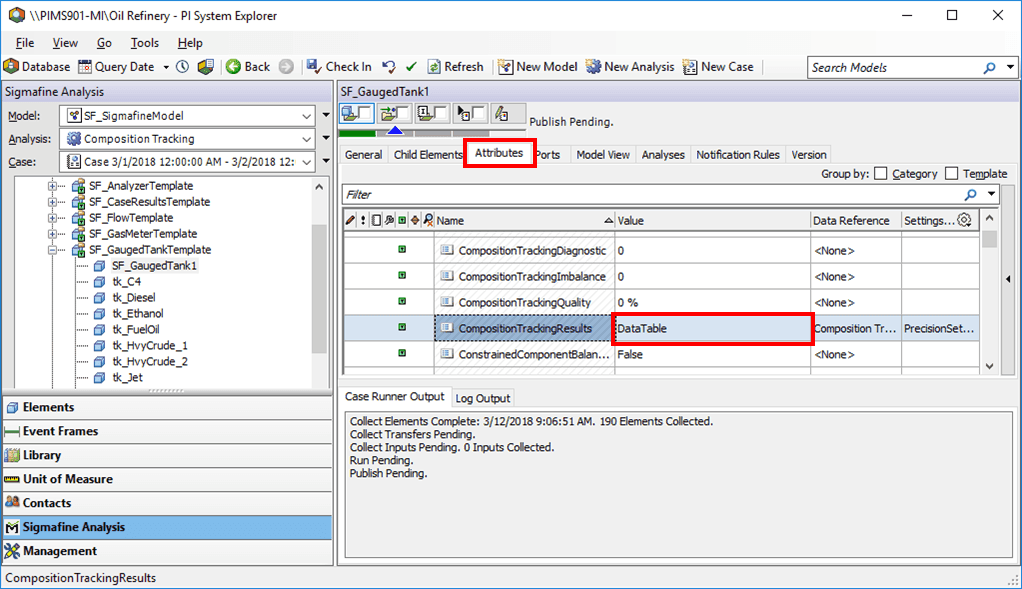
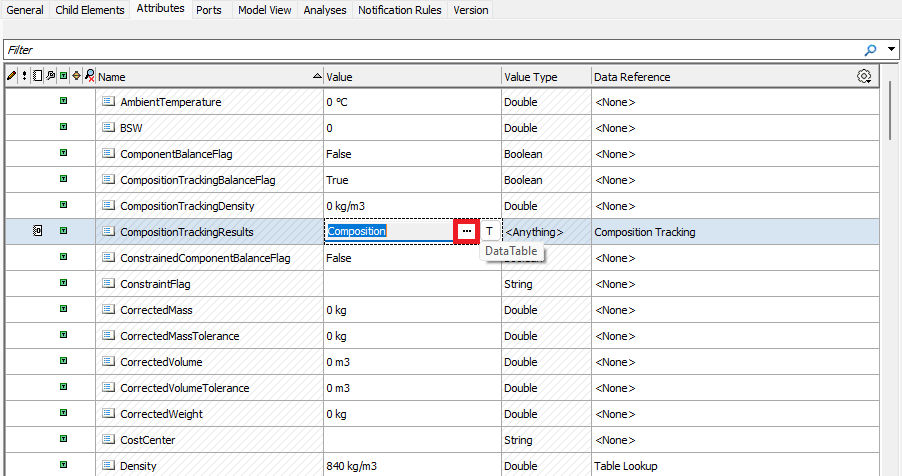
Under the Value column, click on Data Table and then in the same Value column click on Composition three dots button to open the Composition Tracking Viewer.
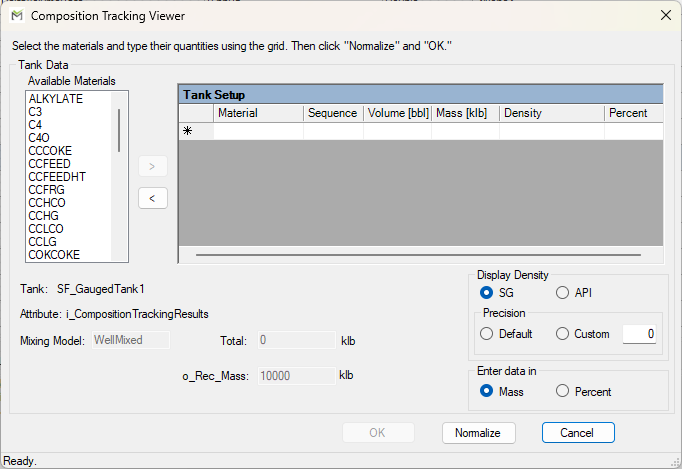
This dialog shows the total mass or volume in the tank, the configured mixing model and an empty table to enter the components and their respective mass or volume and percent mass or percent volume. Using the above dialog, you can enter the initial composition of the inventory tanks.
See Using the Viewer for more details.
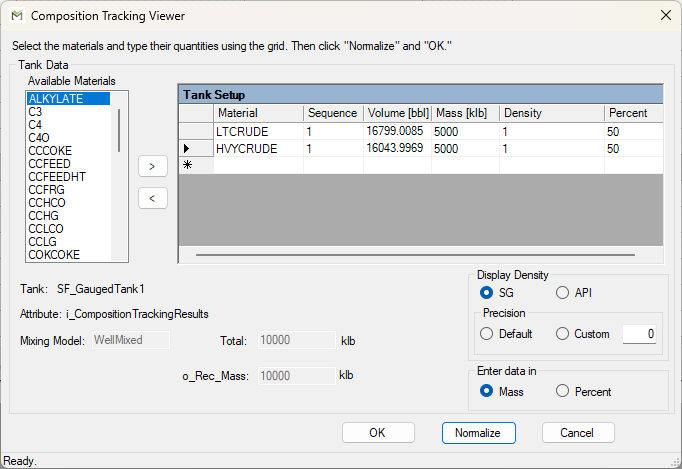
At the end of the composition initialization, the composition tracking viewer should show the initial composition of the tanks as shown in the below figure.
 info
infoThe total mass or volume in the tank should match the total mass or volume collected for the inventory in the source analysis (Mass or Volume Analysis).
Empty Tanks Initialization
In some cases, the inventory tank may be empty at the start of the analysis. In this case, you cannot initialize the composition as there is no mass or volume in the tank.
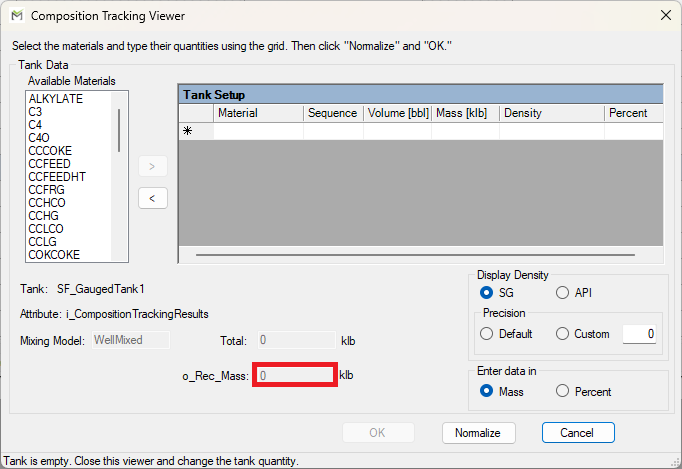
In this case, you can press the cancel button and left the composition tracking viewer table empty.
This condition may raise an error when running the next cases if the composition tracking rule is configured to require the composition of the tanks.
Error, Element: SF_GaugedTank1, Attribute: CompositionTrackingResults. The composition table is not initalized.
This error can be bypassed by checking the option "Support empty tank without initial composition" in the composition tracking rule configuration (Extended Params tab).
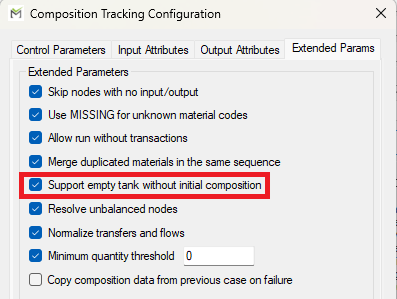
See Extended Parameter tab for more details.
Using the Data Importer
When working with a large number of inventory tanks, you can use the Data Importer to import composition data from a file rather than entering it manually.
Prepare the Import File
Create an Excel workbook with the composition data formatted as shown below:
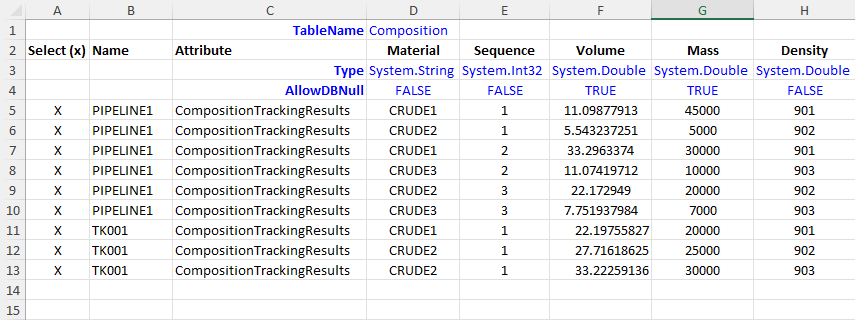
Optionally, use the template Excel file available in the Sigmafine installation folder as a starting point:
[installation folder]\Sigmafine\Bin\Data Importer Template.xlsx
Import the Data
Once your file is prepared, use the Data Importer to load the composition data into your analysis.
Documentation Resources:
Data Importer - Learn how to use the Data Importer, including the Any Data Table option for composition tracking tables.
Data Importer (Desktop Application) - Learn how to use the legacy Data Importer desktop application and review the Import File Format for Composition Tracking Results.