Adding a New Unit of Measure to a Class
To add a new unit of measure to a class:
Open the System Explorer window.
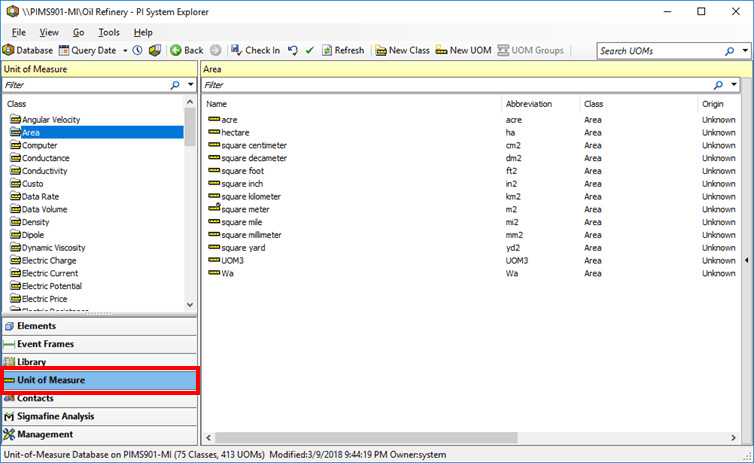
From the navigation pane, click on Unit of Measure to display the Unit of Measure panes.
Select the appropriate Unit-of-Measure Class.
Select New UOM.
The Unit of Measure Properties window opens.
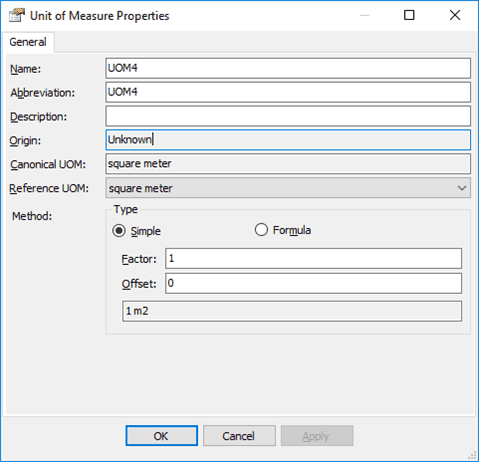
Complete the Unit of Measure Properties information.
In the Name box, type a name for the new UOM.
Units of measure can have the same name as long as they have different abbreviations.
In the Abbreviation box, type an abbreviation for the name above.
Units of measure must have different abbreviations.
(Optional) In the Description box, type a short description for this new unit of measure.
Click the Reference UOM down arrow and select a unit of reference from which the new unit can be converted.
Click on the appropriate Type option:
Simple - Choose this option for a conversion that requires a scaling factor and a base offset.
Formula - Choose this option for a complex conversion calculation.
The Factor and Offset values used are relative to the referenced UOM declared in the interface. When an existing unit of measure is selected, these values are already defined and the two boxes are pre-populated with the correct values. However, if you are adding a new UOM, then you may need to enter the values that are required for the UOM.
In the Factor box, use the factor value required for the UOM declared.
In the Offset box, use the offset value required for the UOM declared.
 EXAMPLE: New Unit of Measure (in "square decameters") in the Area Class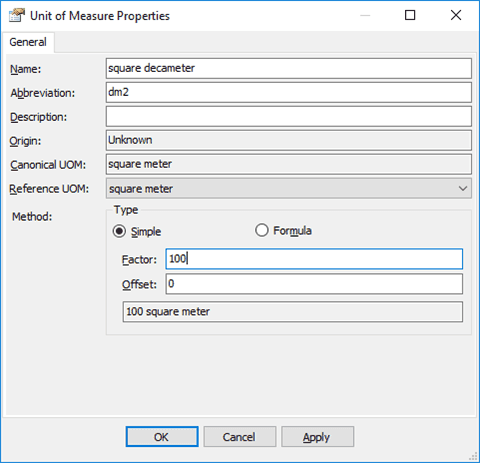
Click OK to save the new unit of measure and close the Unit of Measure Properties window.