Adding Layers to a Model
When adding layers to a model, please make note of these points:
- Right-clicking a symbol and selecting 'Assign Layers' causes all layers to display in Build mode.
- When you add a symbol to the display, it is automatically added to all active layers.
- A one-to-one correspondence exists between ProcessBook layers and Modeler layers in a display.
- Lock a layer to prevent moving objects to/from that layer.
- In Run Mode, you only see the visible layers.
The use of multiple layers in a Model is optional. However, working with two or more layers adds considerable flexibility to the operation of the model.
To add a layer to a model:
In the Modeler, open the AF Property window.

Select the Model tab.
Right-click on Layers and select New Layer from the pop-up menu.
The Modeler creates a new layer and assigns it a default name of Layer 1.
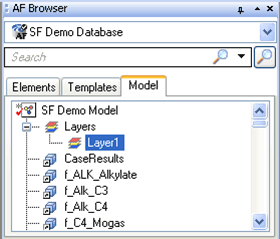
To rename the new layer, right-click on it and select Rename.
Type the new name for the layer.
Repeat these steps to create as many layers as needed.
Note: Layers that you create in a Model are coordinated with ProcessBook layers.