Creating a New Database in System Explorer
Open the System Explorer.
From the WindowsStart menu, select All Programs > PI System > PI System Explorer to open the PI System Explorer window.
If this is the first time you have opened an AF client application, the system prompts you to select a database directly.
In the PI System Explorer window, select File > Database, or
click the
 button on the toolbar.
The Select Database window opens.
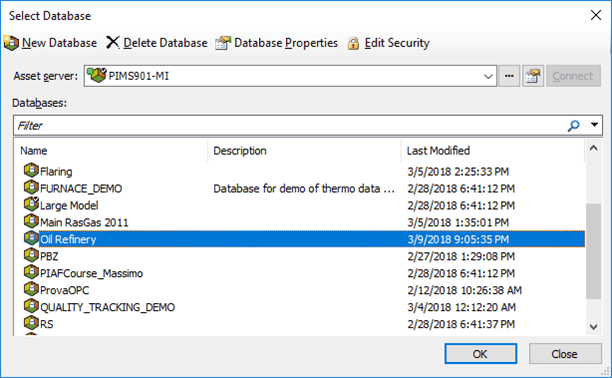
Before creating a new database, you need to connect to the Sigmafine server where you want the new database to reside.
Click the Asset server down arrow and select the server.
If the server you need is not listed, click the
 ellipsis button to open a server selection window where you can locate and select the server.
If the server you want is not listed in the window:
Either click the
 Add Asset Server button, or
 right-click on the list of servers (as shown above) and select Add Asset Server from the pop-up menu.
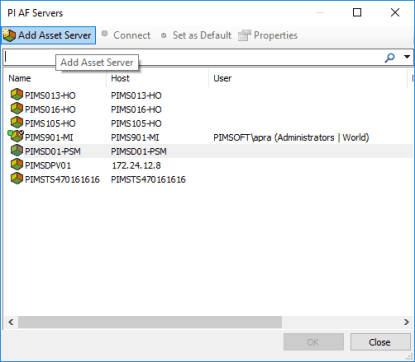
After entering / selecting the server information, click OK.
You are returned to the Select Database window.
After selecting or adding a server, click Connect to list the databases available on the server.
The Databases list is populated with the databases on the server you selected.
If the System is connected, one default database named “configuration” is displayed. This is used by the Data Directory clients as they use the Data Directory. Do not use this for your own application.
Warning: Do not Edit/Delete the ‘Configuration’ Database.
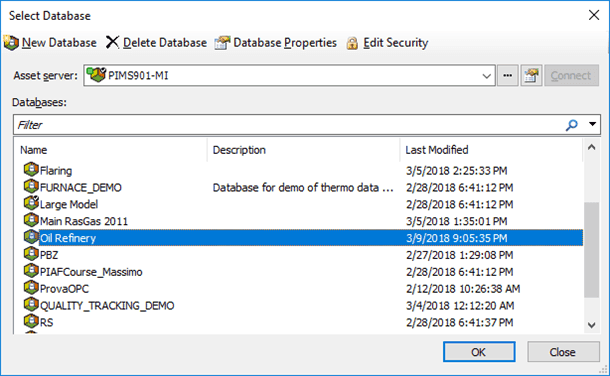
Click on the
 New Database button.
The Database Properties window opens.
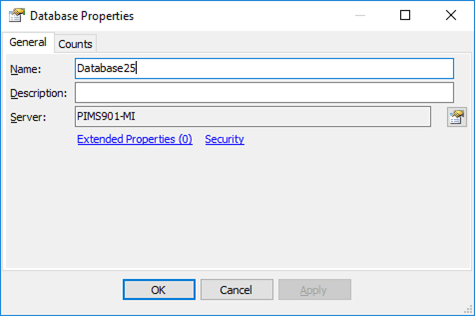
In the Name box, type a name for the database.
The name can imply the scope of the Sigmafine model, for example "Plant-wide Model" or "Unit Model".
(Optional) In the Description box, type a meaningful description for the database.
Click OK to create the database and close the Database Properties window.
You are returned to the PI System Explorer window.
Import the Unit-of-Measure classes:
In the navigation pane on the left, select Unit of Measure.
 .
.Select File > Import from File....
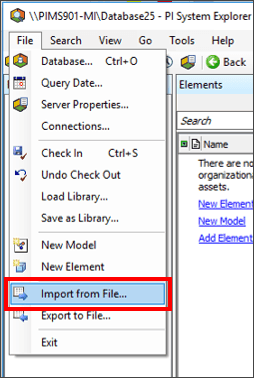
Note: This is done just once to obtain the UOMs used by the Sigmafine Library. The UOM is stored on the server and is same for all the databases. More UOMs can be added at any time.
Select the file to import and click OK.
Import the Library:
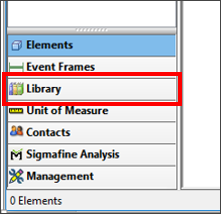
In the navigation pane on the left, select Library.
In the Library pane, right-click on the database name and select Import from File....
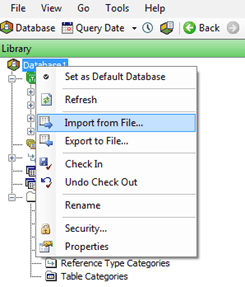
Alternatively, you can select File > Import from File... from the menu at the top of the window.
Browse to and select the Sigmafine.xml (or SigmafineSI.xml) library file from Sigmafine\Library folder.
Click OK to choose the file and close the window.
The Import from File window opens.

Ensure that the Import Options are selected as shown in Figure 86.
Note: Sigmafine.xml defaults to units for North American standards, while SigmafineSI.xml defaults to units for SI standards.
Click OK to import the Sigmafine Library in the selected server.
Check-in the changes.
While in the Library, select File > Save as Library... from the menu.
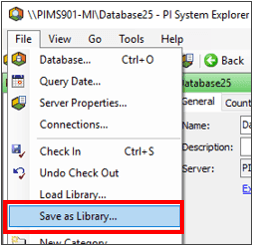
The Save Database as Library window opens.
Figure 88; Save Database as Library window
In the Library Name box, type a name for the library.
Saving the library is useful because it is saved on the Sigmafine server and can be used again when creating another database. The library is then
available from the Load Library box in the Database Properties window.
 EXAMPLE: Database Properties - Load Library option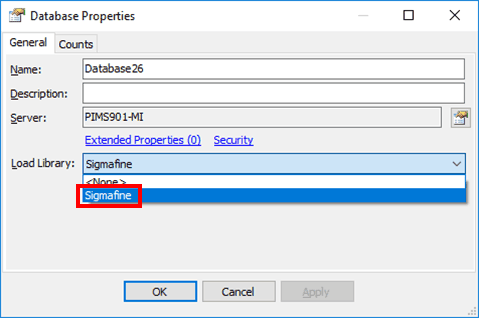
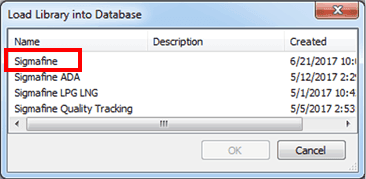
Also, when you need to load a library for an existing database, the File-Load Library option opens the "Load Library into Database" window where the saved library is displayed in the list of existing Sigmafine libraries.
Click OK to save the library and close the Save Database as Library window.
Click OK to save the new database.
(Optional) To set this new database as the Sigmafine Default Database for the server:
Click on the Database to open the Select Database window.
Click the Default Database option to set this database as the default.
Click OK to save your selection and close the Select Database window.
Note: The Database templates have default units in the templates and some global settings that can be changed. For more information about changing the units of measure in templates, see the [Editing a Unit of Measure](/DocumentDepot/DocSFHub/docs_2026/docs-sf-system/SERVER-CLIENT/Model%20Building/UOM/edit-a-uom) topic under UOM.