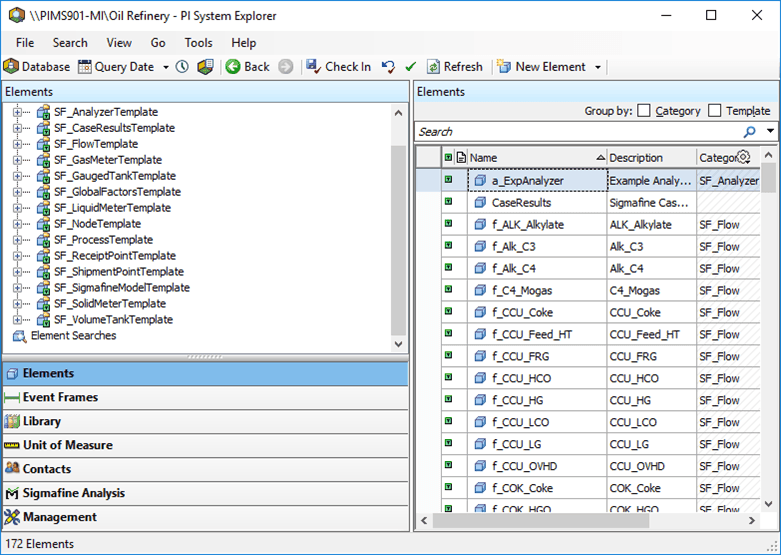
Connecting to / Opening a Database
A Sigmafine database is hosted by a PI Server and access to it is enabled through the AF 2.x Services. Therefore, when connecting to the Sigmafine database, you must know the name of the PI Server that hosts the AFServices.
Accessing a Database in PI System Explorer
Open the System Explorer.
From the WindowsStart menu, select All Programs > PI System > PI System Explorer to open the PI System Explorer window.
If this is the first time you have opened an AF client application, the system prompts you to select a database directly.
In the PI System Explorer window, select File > Database, or click the
 button on the toolbar.
The Select Database window opens.
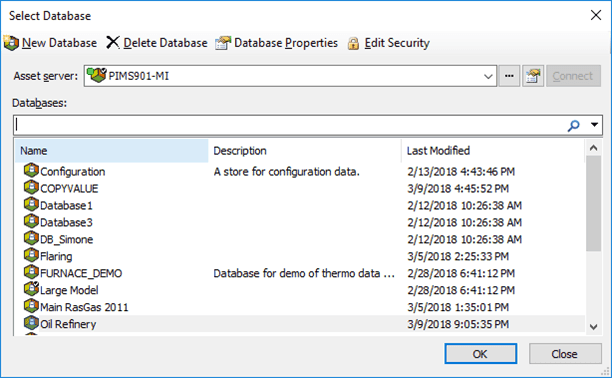
Click the Asset server down arrow and select the Sigmafine server to which you want to connect.
If the server you need is not listed, click the
 ellipsis button to open a server selection window where you can locate and select the server.
If the server you want is not listed in the PI AF Servers window:
Either click the
 Add Asset Server button (as shown in the first figure below), or
right-click on the list of servers (as shown the second figure below) and select Add Asset Server.
Add Asset Server button (as shown in the first figure below), or
right-click on the list of servers (as shown the second figure below) and select Add Asset Server.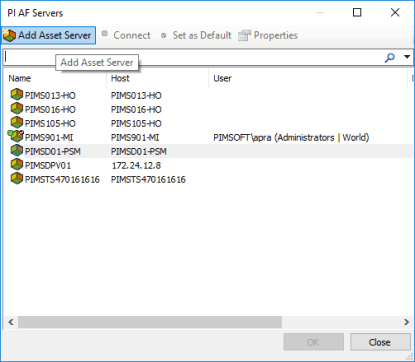
After entering / selecting the server information, click OK.
You are returned to the Select Database window.
After selecting or adding a server, click Connect to list the databases available on the server.
The Databases list is populated with the databases on the server you selected.
If the System is connected, one default database named “configuration” is displayed. This is used by the Data Directory clients as they use the Data Directory. Do not use this for your own application.
Caution: Do not use this for your own application.
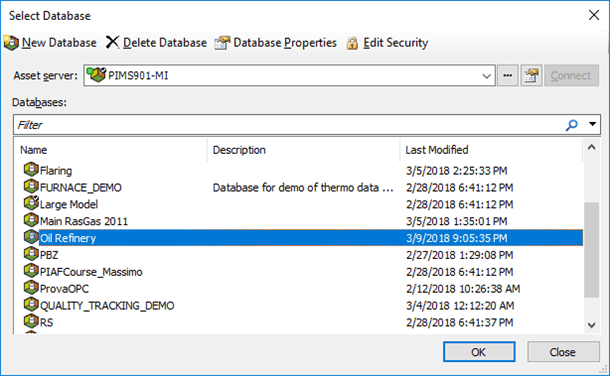
In the list of databases, select the database that contains your Sigmafine models.
Note: To create a new Database, right-click and select New Database. If you want System Explorer to access this database as the default, right-click on the Database name and select Set as Default Database.
Click OK to save your selections and close the Select Database window.
The PI System Explorer window opens displaying the database in tree-view.