Checking Out / Checking In / Undoing a Check Out
Throughout the Sigmafine Database you will encounter check marks as shown in the figure below.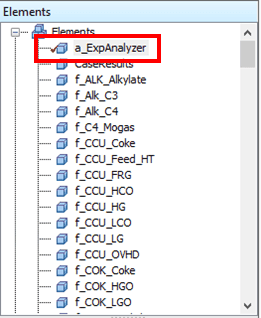
The check marks indicate changes that are made in the database. Changes that you make to an object need to be saved in the database. Unsaved changes that are not applied are indicated by a red check mark icon. Changes that have been applied, but not saved to the database are indicated by a dark red check mark icon: The following figure illustrates the use of these icons.
To undo the changes made, there is an option ‘Undo Check Out’. This can be done at different levels, example for individual Elements or for entire database.
Checking In
To check in all objects:
- In the System Explorer window, click the
 Check In button.
 - In the Modeler window, Check In the model; then you must also save the Model by selecting File > Save from the menu.
Checking Out
To check out all objects:
- In the System Explorer window, click the Check Out button.
- In the Modeler window, click on Check Out.
Undoing a Check Out
To undo a check out of all objects:
- In the System Explorer window, click the
 Undo Check Out button.
Applying Changes
To apply changes to all objects:
- In the System Explorer window, click the
 Apply Changes green check button.
 - In the Modeler window, Apply the change and then save the Model by selecting File > Save from the menu.