Viewing the Analysis Case Results
The analysis Case results can be viewed from either System Explorer or Modeler.
Viewing Analysis Case Results in System Explorer
To view the results in System Explorer:
Open System Explorer.
In the navigation pane, select Sigmafine Analysis.
Click the Analysis down-arrow and select the analysis for which you want to view the analysis Case results.
Click the Case down-arrow and select the case.
To find a Case that is beyond the default search range:
- Click Find in the Case menu bar.
- Select a different search range.
Review the Case analysis results by clicking on the Results, Adjustments, Log Output, etc. tabs.
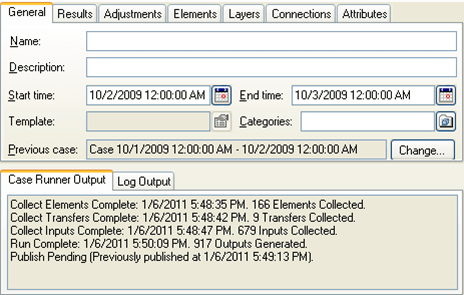
For a better understanding of the resulting information under each tab, please see Case Properties Tabs.
(Optional) You can also view the results by element.
To review the results by element:
- Browse the elements collection under the Case in the tree view.
- Select the Element to display the Element results.
Click on the Attributes tab.
Review the input attributes (values that the analysis used as inputs, marked with an "I") and output attributes (values that the analysis used as Outputs, marked with an "O").
Note: Click the Show Categories checkbox to sort the Attributes by their role in the analysis (Attribute category). Since the Attribute can belong to multiple categories, the same Attribute might appear twice in this view.
Viewing Analysis Case Results in Modeler
To view the results in Modeler:
Open Modeler.
On the AF Analysis Toolbar, select the case.
To find a Case that is beyond the default search range:]
- On the AF Analysis Toolbar, click the
 Search button to open the Case Search window.
 - Select a different search range.
- When finished, click Close to close the Case Search window.
- On the AF Analysis Toolbar, click the
On the AF Analysis Toolbar, click the
 Case Properties icon to open the Case Properties window.
Review the Case analysis results by clicking on the Results, Adjustments, Log Output, etc. tabs.
For a better understanding of the resulting information under each tab, please see Case Properties Tabs.
(Optional) You can also view the results by element.
To review the results by element:
- In the AF Browser, click on either the Elements or Model tab.
- Locate and select the element.
- In the AF Property window, click the Attributes tab to view the Element Attribute results.
Review the input attributes (values that the analysis used as inputs, marked with an "I") and output attributes (values that the analysis used as Outputs, marked with an "O").
Note: Click the Show Categories checkbox to sort the Attributes by their role in the analysis (Attribute category). Since the Attribute can belong to multiple categories, the same Attribute might appear twice in this view.
Case Properties Tabs
The following table describes the review functions that can be performed under each of the Case Properties window tabs. Under the System Explorer steps, the following is relative to step 5. Under the Modeler steps, it is relative to step 4.
Case Properties Tabs
| Tab | Review Functions |
|---|---|
| General | Review the auditing log of the analysis steps and the times that they were executed. Steps that are in error or have been rerun appear here. |
| Results | Review the input values to the analysis and the output (resultant) values from the analysis. For Sigmafine, the input measurements and the corresponding reconciled measurements and statistics appear here. For a listing per element, see step 3 below. |
| Adjustments | Review any adjustments made on the input values of the analysis. To create an adjustment, see the next \topic Create an Adjusted Value. |
| Log Output | Examine success, failure and warning messages from the analysis steps. Sigmafine analyses place information about the most severe errors here in the log. |
| Layers / Elements . Connections | These tabs contain lists of the components of the Model for review. |