Configuring - Reactions
To set up the reaction equations for a stoichiometric balance, you use the Component Input tab in the Component Mass Balance Configuration window. This type of balance is an extension of the component balance, and you use it when the creation or depletion of components occurs in a reactor. Elements that have the category “SF_Reactor” are the only elements that allow stoichiometric balance. It is possible to have a coupled component balance and stoichiometric balance if one of the components does not participate in the system of reactions.
For example, the decomposition of substance A to form products B and C in solvent S occurs in a reactor. Components A, B, and C have two stoichiometric constraints, while S has a component balance constraint. An example for this system can be found under Component Mass Balance - Reactor Example.
Note: he linear balance option of the Component Balance Analysis Rule does not perform a component balance on reactors.
Chemical Reaction Syntax
Separate stoichiometric coefficients and the respective chemical compounds with the * symbol. For example, write two molecules of water as 2*H2O and not as 2H2O. Use the + symbol to sum chemical compounds. Separate the reactants and products with the chemical reaction arrow, which is represented with the -> symbols.
Create the list of components in the SF_Components Table, described in section "Component Mass Balance – Required Tables." The component list box contains only those components with a valid molecular weight in the SF_Component Table. A valid molecular weight implies a value larger than 1.
You can express the chemical coefficients as fractions or as decimal numbers; however, decimal numbers need at least four decimal places to represent fractions. For example, represent the coefficient 1/3 as 0.3333. The following table shows valid input texts for the same chemical reaction.
Example Input Text for a Chemical Reaction
| Example | Example |
|---|---|
| CO + ½ O2 → CO2 | CO+0.5*O2->CO2 |
| CO + ½ O2 → CO2 | CO + ½ O2 → CO2 |
| 2CO + O2 → 2 CO2 | 2CO+O2->2CO2 |
Note: When expressing coefficient decimals with international syntax (example ½ represented as “0,5” rather than “0.5”) use the graphical editor to enter these values. If directly editing the configuration string, use the culture invariant format with the decimal. For example, if the computer has German settings, the equation '0,5*A->B' is stored in the configuration string as '0.5*A->B'. If you create the equation with the graphical editor, write '0,5*A->B'.
Configuring Reactions Graphically
To configure reactions:
Open the Component Mass Balance Configuration window.
For instructions on opening the window see Configuring - Component Balance Analysis Rule.
On the Component Input tab, click Set Up Reactions.
The Reaction Editor window opens.
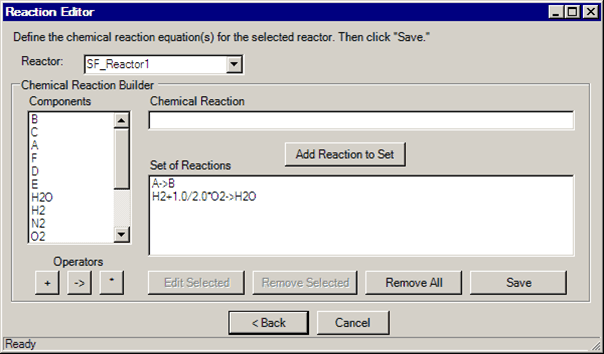
Define or edit one or more reactions for the reactors, using the Reaction Editor Window table as a guide.
Components listed in the 'SF_Components' table appear in the Components list.
Note: If components in the table have invalid molecular weights, you receive a warning prior to the Reaction Editor window opening.
After making all your changes, click Save to save your changes and close the Reaction Editor window.
Reaction Editor Window
| Field / Button | Description |
|---|---|
| Reactor | Select the reactor Element for which you are configuring stoichiometric balances. |
| Components / Operators | To build the reaction in the Chemical Reaction box, enter the reaction directly, OR Click to add reactants/products in the Components box, for stoichiometric coefficients, or for the reaction yield operator. See Chemical Reaction Syntax for more information. |
| Chemical Reaction | This text area lists the reaction you are currently defining or editing. Click the Add Reaction to Set button to add the edited reaction to the Set of Reactions box. |
| Add Reaction to Set | Click this button to add the reaction to the Set of Reactions box. Syntax validation occurs when you click the button. See Chemical Reaction Validation for more information. |
| Set of Reactions | Displays the set of reactions that you build. |
| Edit Selected | Click this button to edit a reaction that you have selected in the Set of Reactions box. |
| Remove Selected / Remove All | Click the Remove Selected button to remove the reaction line that you have selected in the Set of Reactions field.Click the Remove All button to remove all the reaction lines. |
| Save | Click this button to save the configuration information in the selected element. |
| Back | Click this button to return to the Component Mass Balance Configuration window without saving your work. |
| Cancel | Click this button to clear the Chemical Reaction box without saving the reaction you are currently editing. |
Chemical Reaction Validation
The Reaction Builder validates equations before adding them to the set of reactions. These validations are done:
- Mass Balance Validation
- Independent Reaction Validation
Mass Balance Validation
The mass balance validation assures that chemical reaction satisfies the following equation.

Where:
vi \= the stoichiometric coefficient
MWi \= the molecular weight of the component.
If this condition is not satisfied, an error message appears. If this happens, review the chemical equation. If the chemical equation is correct, edit the values of molecular weight in the SF_Components Table.
Independent Reaction Validation
The Reaction Builder verifies that any component does not participate in more than one chemical equation. This version only supports sets of independent reactions.
Other Validation Checks
The Reaction Builder does other validations for the chemical reaction expression. The following table summarizes these error checks.
Miscellaneous Validation Checks
| Error | Troubleshooting |
|---|---|
| The symbol -> cannot appear more than once in equation. | Remove the extra -> symbol in the text box. |
| Component [Component name] is not found in the component library. | Add the component to the component library (SF_Component Table). |
| The symbol -> was not found in the equation. | Add the -> symbol. |
| An error occurred in the expression: [Substring of unrecognizable format]. | The parser cannot understand that segment of the equation. Revise the equation. |
| Cannot divide by zero. | Eliminate division by zero. |
| The equation is not well formed. | Revise equation format. |
| The stoichiometric coefficient cannot be zero. | Revise the stoichiometric coefficients. |
| Component [Component name] cannot be used more than once in equation. | Remove any duplicate components in equation. |